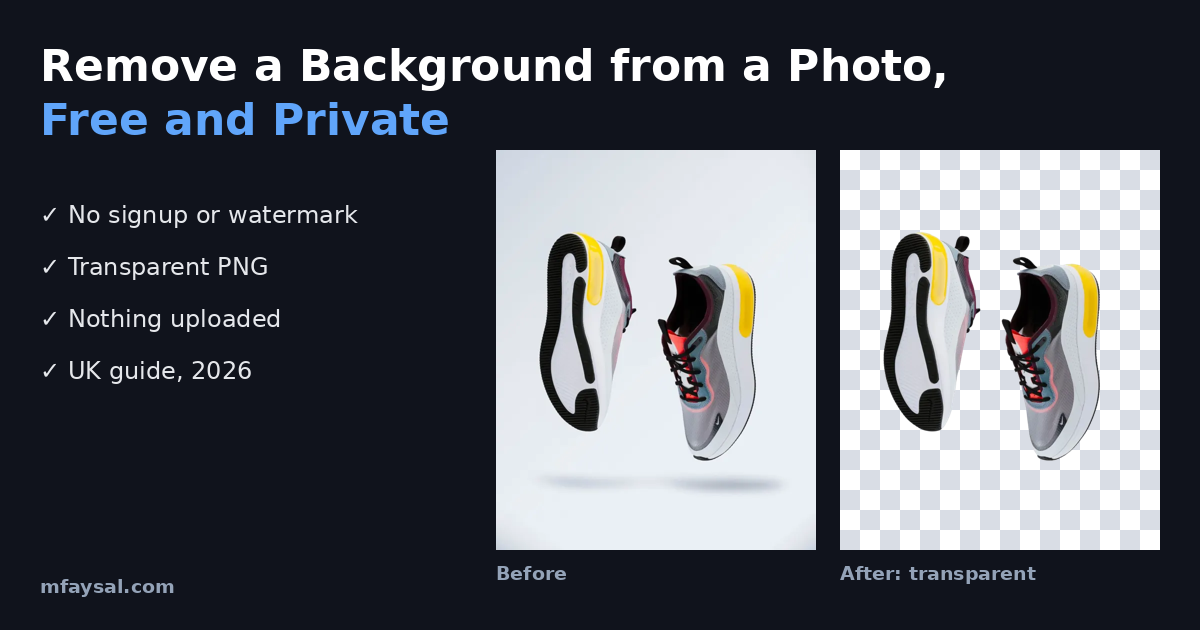
To remove the background from a photo for free, open a browser-based background remover, choose your image, keep the background set to "Transparent" and download a PNG. The best free options need no signup, add no watermark and, ideally, process the photo on your own device so nothing gets uploaded. This guide explains how to do it, how to get a clean cut-out, and what to check before you trust a "free" tool with your photos.
I built the free background remover on mfaysal.com because most tools I tried either asked me to sign up, cut the download to a low resolution, or uploaded the image to a server I knew nothing about. The steps below work with any good tool, but I'll use that one as the example.
How to remove a background from an image, step by step
- Pick a good source photo. A subject that contrasts with its background (a dark trainer on a light wall, a person in front of a plain door) gives the cleanest result.
- Open the tool and choose your image. JPG, PNG and WebP all work. On a phone you can pick straight from your camera roll.
- Choose a mode. A light "Fast" model suits portraits and phones. A heavier "High quality" model gives sharper edges on products and objects, but takes longer on older devices.
- Choose the background. Keep it transparent for designs, or pick white or a brand colour for listings and social posts.
- Download. A transparent result must be saved as PNG (or WebP). JPG can't store transparency, so it fills the empty area with a colour.
The first image can be slow because the AI model has to download once. After that it's cached by your browser and each new photo takes a few seconds.
What "transparent background" actually means
Every pixel in a PNG can carry an extra value called alpha, which says how see-through it is. A background remover works out which pixels belong to the subject and sets the rest to fully transparent. Around hair and soft edges, good tools use partial transparency so the cut-out blends naturally instead of looking like it was cut with scissors.
That's why a transparent PNG looks right on top of a website header, a Canva design, a PowerPoint slide or a coloured poster: whatever sits behind it shows through. If you open the file in a basic photo viewer you may see a white or chequered background, which is just how the viewer shows "nothing".
Free, no signup, no watermark: what to check
Lots of tools call themselves free. In practice, check three things before you rely on one:
- Download resolution. Some services give you a small preview free and charge credits for full size. Test with a large photo and check the pixel size of what you get back.
- Watermarks and limits. Look for a logo in the corner or a daily cap on images.
- Account walls. If you have to sign up before downloading, you're often trading your email for the image.
A tool that runs entirely in your browser has no per-image server cost, which is why it can stay genuinely free without credits.
Private background removal: why it matters in the UK
Most online background removers upload your photo to their servers to process it. That's fine for a picture of a mug, but less fine for photos of customers, staff, children or unreleased products. Under UK GDPR, a photo of an identifiable person is personal data, and sending it to a third-party service means sharing that data with another processor. The ICO's UK GDPR guidance explains your responsibilities if you handle other people's data for a business.
An in-browser remover avoids the question entirely. The AI model is downloaded to your device and the photo is processed locally, so it never leaves your computer or phone. A simple way to check any tool's claim: once the model has loaded, switch on aeroplane mode and process another image. If it still works, nothing is being uploaded.
Product photos for Amazon, eBay, Etsy and Vinted
Clean backgrounds make listings look more professional and consistent. Amazon is the strictest: Amazon's product image requirements ask for a pure white background (RGB 255, 255, 255) on main images, with the product filling most of the frame. For the best results:
- Shoot in soft, even light, such as near a window on an overcast day.
- Keep the product away from the wall so it doesn't cast a hard shadow onto it.
- Use a high-quality mode for shoes, jewellery, bottles and electronics.
- Set the background to white for marketplaces, and keep a transparent copy for banners and adverts.
- Shrink the final file before uploading. Transparent PNGs can be large, so an image resizer helps you hit the size each marketplace wants.
Portraits, CV photos and passport photos
For headshots, portrait-matting models handle hair much better than general object models. Putting yourself on a neutral grey or soft colour makes a LinkedIn or CV photo look consistent.
Passport and driving licence photos are different. The GOV.UK rules on passport photos cover the background, lighting, shadows, expression and size, and say photos must not be altered by computer software. A plain wall and good lighting are a safer bet than editing the background afterwards.
Getting a cleaner cut-out
- Contrast is everything. White products on white tables are the hardest case for any AI.
- Glass, smoke and fine mesh are difficult for every tool. Try both modes and keep the better result.
- Very large photos don't give more detail. Most models work at around 1024 pixels internally and scale the mask back up, so huge images just take longer.
- Fix small mistakes by hand. A manual background eraser is useful for tidying a stray patch.
Can you use the result commercially?
Your photo is yours. The question is the licence of the AI model the tool uses. Some popular background-removal models are licensed for non-commercial use only. The mfaysal.com tool uses BiRefNet Lite (MIT licence) and MODNet (Apache-2.0), both of which allow commercial use, so you can use the cut-outs in a shop, an advert or a client project.
Frequently asked questions
How can I remove a background from an image for free with no signup?
Use a browser-based remover such as the mfaysal.com background remover. Choose your image, keep the background transparent and download a PNG. There's no account, watermark or credit system.
Is it safe to use online background removers?
It depends where the processing happens. Many upload your photo to a server. Tools that run in your browser process the image on your device, so it is never sent anywhere.
Why does my transparent PNG show a white background?
Some photo viewers and apps display transparency as white. Place the PNG on a coloured design or open it in an editor and you'll see the transparent area.
Can I make a transparent background on an iPhone?
Yes. Open the tool in Safari, choose a photo from your library and download the PNG. Use the lighter "Fast" mode on phones because it needs less memory.
Why should I save as PNG instead of JPG?
JPG doesn't support transparency, so any transparent area becomes a solid colour. Use PNG for transparent cut-outs and JPG only when the background is a solid colour.
Can I use a background remover for a UK passport photo?
GOV.UK says passport photos must not be altered by computer software, so editing the background is risky. Take the photo against a plain light background instead.
Why is the first image slow?
The AI model downloads once (roughly 25 MB to 115 MB depending on the mode) and is then cached, so later images are much faster.
Does removing a background reduce image quality?
A good tool keeps your original resolution and only changes the background pixels. Check the pixel size of the download to make sure it wasn't shrunk.