Microsoft Defender Antivirus is built into Windows 10 and 11, and for most home users it is all the antivirus they need. But it can be switched off quietly: another antivirus takes over, a trial expires, malware disables it, or a "tweaker" tool turns it off. Here is how to check that it is really on, up to date and actively scanning, in about two minutes.
Method 1: Windows Security (the quick check)
- Press Start, type Windows Security and open it.
- Click Virus & threat protection.
- Under Virus & threat protection settings, click Manage settings.
- Check that Real-time protection, Cloud-delivered protection and Tamper Protection are On.
A green tick on the home screen means Windows thinks you are protected. A yellow or red icon tells you what to fix.
If the page says another provider is active (for example Norton or McAfee), Defender has stepped aside on purpose. That is normal, as long as the other product is genuinely running and up to date.
Method 2: PowerShell (the precise check)
Open Windows Terminal or PowerShell and run:
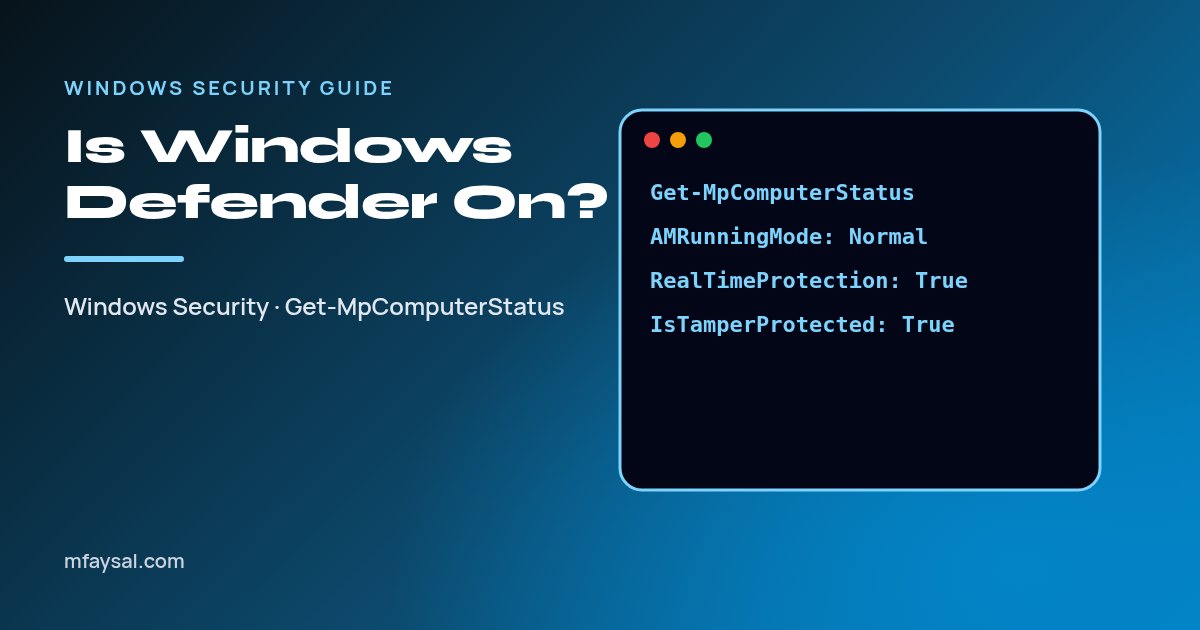
Get-MpComputerStatus | Select-Object AMRunningMode, AMServiceEnabled, AntivirusEnabled, RealTimeProtectionEnabled, IsTamperProtected, AntivirusSignatureLastUpdated, QuickScanEndTime
What healthy looks like:
| Field | Healthy value | Meaning |
|---|
| AMRunningMode | Normal | Defender is the active antivirus. Passive or SxS Passive Mode means another product is primary. |
| AMServiceEnabled | True | The antimalware service is running. |
| AntivirusEnabled | True | The antivirus engine is on. |
| RealTimeProtectionEnabled | True | Files are scanned as they are opened. |
| IsTamperProtected | True | Malware cannot easily switch settings off. |
| AntivirusSignatureLastUpdated | Within the last day or two | Definitions are current. |
See which antivirus Windows thinks is active
Get-CimInstance -Namespace root/SecurityCenter2 -ClassName AntivirusProduct | Select-Object displayName, productState
This lists every antivirus registered with Windows Security Center. It only works on desktop Windows, not Windows Server. If you see a product you never installed, investigate it.
Update definitions and run a scan
Update-MpSignature
Start-MpScan -ScanType QuickScan
You can also do both from Windows Security: Protection updates > Check for updates, then Quick scan.
Defender is off and you did not turn it off
- Another antivirus is installed. Uninstall it properly (from Settings > Apps) if you want Defender back. Windows usually re-enables Defender automatically afterwards.
- Organisation policy. On a work laptop, IT may manage it. "Some settings are managed by your organization" is expected there.
- Possible malware. If real-time protection keeps turning itself off and you did not install anything, run Microsoft Defender Offline scan (Virus & threat protection > Scan options). It reboots and scans before Windows loads. Also check your startup programs and failed login attempts.
Do not disable Tamper Protection
Many "speed up Windows" guides tell you to turn Tamper Protection off. It exists to stop malware and scripts from turning Defender off behind your back. Leave it on.
FAQs
Is Windows Defender good enough in 2026?
For most home users, yes, when combined with Windows updates, a standard (non-admin) daily account and two-factor authentication. Independent labs such as AV-TEST regularly rate it well.
Is Windows Defender the same as Microsoft Defender?
Yes. Microsoft renamed Windows Defender Antivirus to Microsoft Defender Antivirus. The separate Microsoft Defender app in Microsoft 365 is an extra dashboard, not a different engine.
Can I run Defender alongside another antivirus?
Not as two real-time scanners. Defender switches to passive mode, but you can enable Periodic scanning so it still runs occasional scans as a second opinion.
All of my Windows security guides are collected on the Windows security how-to hub.