Most home and small-business PCs are not hacked with clever exploits. They are compromised through weak or reused passwords, phishing emails, missing updates and software that quietly runs at startup. The good news is that Windows 11 and 10 already include the tools to check for all of these. This hub collects my step-by-step guides in the order I would work through them on a new or suspicious PC.
Open Windows Security and confirm every section has a green tick.
Check Task Manager > Startup apps for anything new.
Review your Microsoft account's recent sign-in activity.
Make sure your backup ran.
Where to report problems
In the UK, report fraud and cyber crime to Report Fraud (formerly Action Fraud) and forward suspicious emails to report@phishing.gov.uk. In the US, use reportfraud.ftc.gov and the FBI's ic3.gov. The NCSC (UK) and CISA (US) both publish free guidance for individuals and small businesses.
FAQs
Do I need paid antivirus on Windows 11?
Not for most people. Microsoft Defender plus updates, a standard account and 2FA covers the common threats.
How do I know if my PC is hacked?
Warning signs include security tools switching off, unknown startup items, password-change emails you did not request and sign-ins from places you have not been. The guides in section 2 show how to check each one.
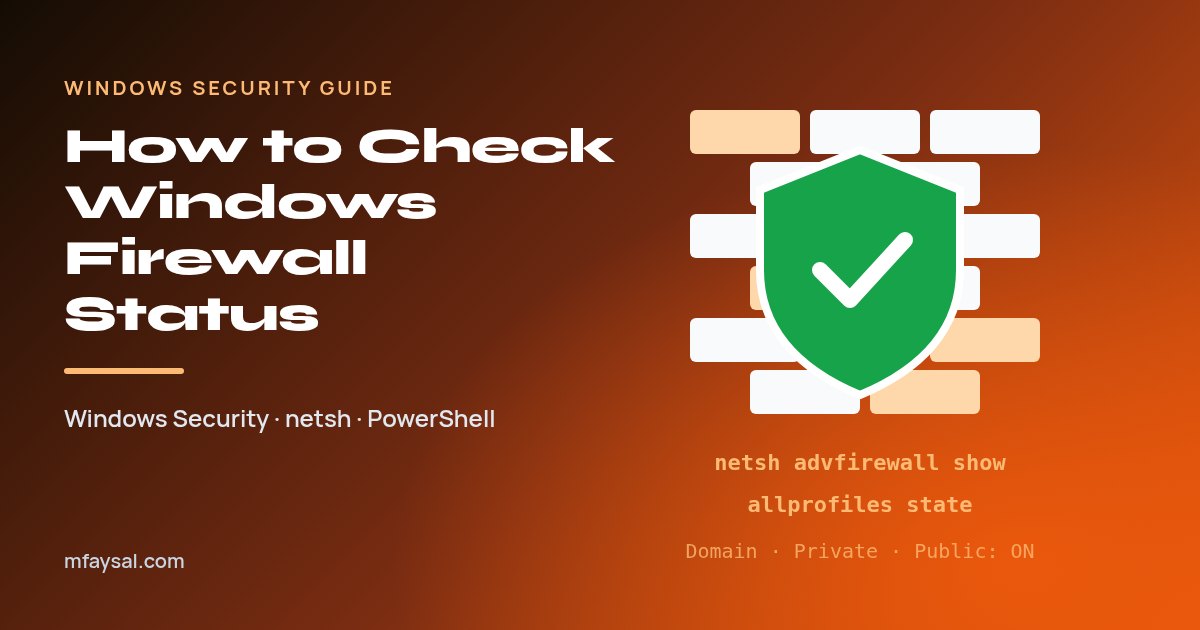
To check Windows Firewall status, open Windows Security and select Firewall & network protection. Each profile (Domain, Private, Public) says whether the firewall is on, and the one you're using is marked active. netsh and PowerShell give the same answer in one line.
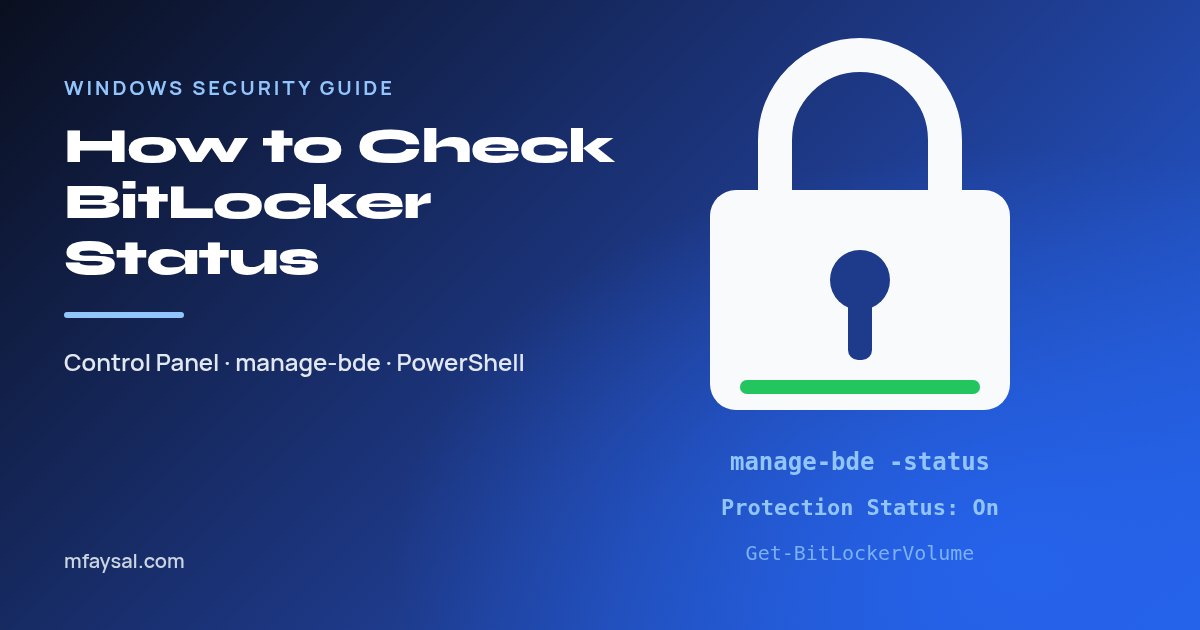
To check BitLocker status, search Start for Manage BitLocker, or run manage-bde -status in an admin Command Prompt. Look at Protection Status: Protection On means your drive is really protected. Fully Encrypted with Protection Off means it isn't, yet.
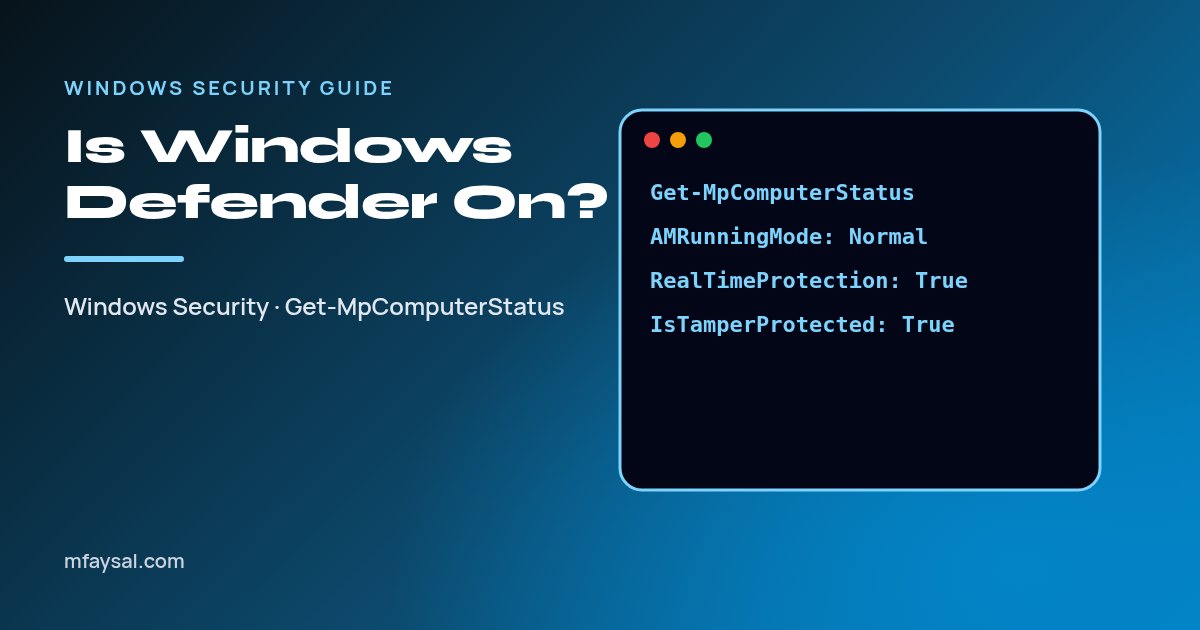
Check if Microsoft Defender Antivirus is on, up to date and not in passive mode. Windows Security steps, Get-MpComputerStatus fields, tamper protection and fixes.
To check startup programs, open Task Manager > Startup apps on Windows or System Settings > General > Login Items & Extensions on a Mac. For a full picture, including scheduled tasks and services, use Microsoft's free Autoruns tool.