Nmap is a free, open-source network scanner that shows which devices are on a network and which ports and services they have open. Beginners should start with nmap -sn 192.168.1.0/24 to list devices on their own home network, then nmap 192.168.1.1 to check a single device. Only scan networks and systems you own or have written permission to test.
Network admins, students and security professionals use Nmap to find forgotten devices, spot services that shouldn't be exposed and check that firewalls are doing their job. It's one of the most useful tools you can learn for defending a network.
This tutorial covers the legal ground rules first, then installation, your first scans, how to read the output and a command cheat sheet, all aimed at your own equipment or the official practice target scanme.nmap.org.
In this guide:
- Read this first: when scanning is legal
- How to install Nmap
- Step 1: find your own network range
- Step 2: list the devices on your network
- Step 3: check open ports on one device
- Understanding port states
- Step 4: practise on scanme.nmap.org
- Nmap cheat sheet for beginners
- Using Nmap to improve your security
- Zenmap and other ways to view results
- Common beginner mistakes
- Reading a full scan report
- Frequently asked questions
Read this first: when scanning is legal
Scanning someone else's systems without permission can break the law and will almost certainly break your internet provider's terms. The rules are simple to follow:
- Scan only what you own, such as your home router, your own computers and your own servers.
- Get written permission before scanning anything else, including your employer's network. A spoken "go ahead" isn't enough; get it in writing with a defined scope.
- Use the official practice host. The Nmap project lets you scan
scanme.nmap.org for learning, within limits. - Check your provider's acceptable use policy. Some ISPs and cloud hosts restrict scanning from their networks.
The legal issues chapter of the official Nmap book sets out these points in detail. It advises getting written authorisation, notes that some ISPs ban scanning in their acceptable use policies, and explains the scanme.nmap.org rules: a modest number of scans a day (no more than about a dozen), and no exploits, denial-of-service testing or brute-forcing.
In the UK, unauthorised access and related offences fall under the Computer Misuse Act 1990. In the US, the Computer Fraud and Abuse Act and state laws apply. This guide isn't legal advice; when in doubt, don't scan.
How to install Nmap
| System | How to install | Check it worked |
|---|
| Windows | Download the installer from nmap.org/download; it includes Npcap and the Zenmap GUI | Open Command Prompt: nmap --version |
| macOS | brew install nmap or the .dmg from nmap.org | nmap --version |
| Ubuntu / Debian | sudo apt update && sudo apt install nmap | nmap --version |
| Fedora / RHEL | sudo dnf install nmap | nmap --version |
| Kali Linux | Pre-installed | nmap --version |
Only download Nmap from nmap.org or your system's official package manager. Fake "Nmap" downloads bundled with malware do circulate.
On Linux and macOS, some scan types need administrator rights, so you'll see sudo in front of certain commands below. On Windows, run Command Prompt as administrator for the same scans.
Step 1: find your own network range
Before scanning, find your device's IP address and network range:
| System | Command | What to look for |
|---|
| Windows | ipconfig | "IPv4 Address", e.g. 192.168.1.23, and "Default Gateway" |
| macOS | ipconfig getifaddr en0 | Your IP address on Wi-Fi |
| Linux | ip addr or ip route | An address like 192.168.1.23/24 |
Most home networks use a range such as 192.168.1.0/24, 192.168.0.0/24 or 10.0.0.0/24. The /24 means "all 256 addresses from .0 to .255". Your default gateway, often ending in .1 or .254, is usually your router.
Step 2: list the devices on your network
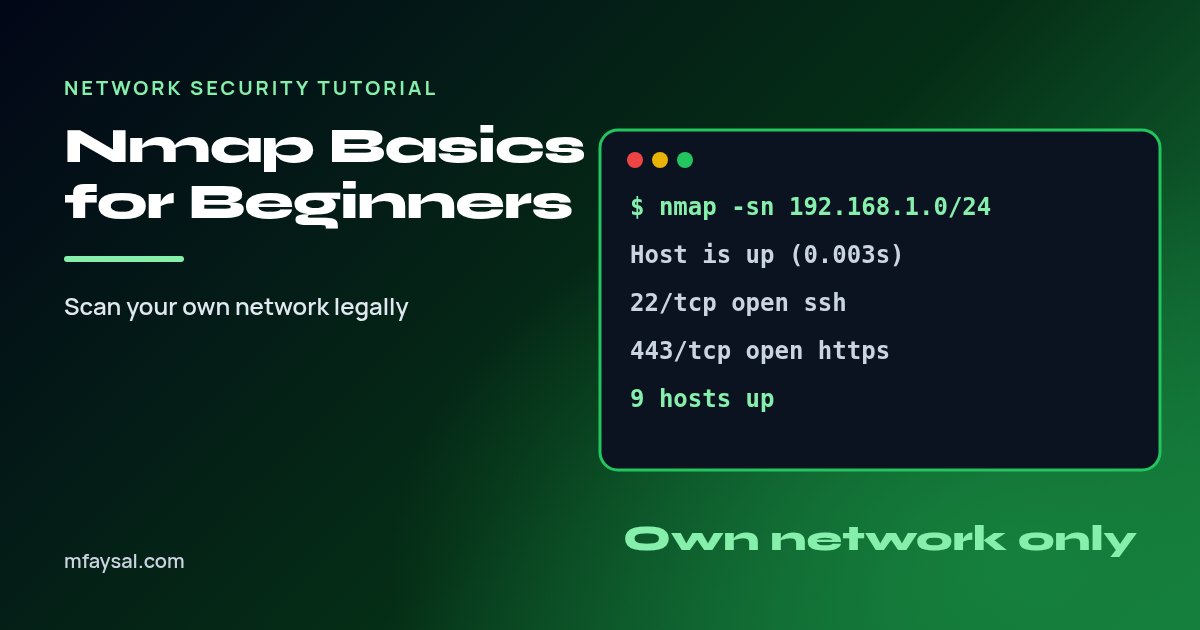
A ping scan discovers which devices are online without checking their ports. It's quick and gentle:
nmap -sn 192.168.1.0/24
Typical output looks like this:
| Output line | Meaning |
|---|
| Nmap scan report for router.lan (192.168.1.1) | A device was found, with its hostname if known |
| Host is up (0.0031s latency). | It responded, and how quickly |
| MAC Address: AA:BB:CC:11:22:33 (TP-Link) | Hardware address and likely manufacturer (shown when run with admin rights on the local network) |
| Nmap done: 256 IP addresses (9 hosts up) | Summary: nine devices online |
Compare the list with the devices you know about: phones, laptops, TV, smart speakers, printer. An unknown device could simply be a forgotten gadget, but if you can't identify it, change your Wi-Fi password.
Step 3: check open ports on one device
Now scan a single device you own, such as your router:
nmap 192.168.1.1
By default Nmap checks the 1,000 most common TCP ports. A typical result:
| PORT | STATE | SERVICE | What it usually is |
|---|
| 22/tcp | open | ssh | Remote command-line access |
| 53/tcp | open | domain | DNS, normal on a router |
| 80/tcp | open | http | Web admin page |
| 443/tcp | open | https | Secure web admin page |
| 445/tcp | filtered | microsoft-ds | Windows file sharing, blocked by a firewall |
Port numbers are only a guess at the service. To ask the service what it really is, add version detection:
nmap -sV 192.168.1.1
Version detection sends more traffic and takes longer, so use it on your own devices rather than on anything delicate or shared.
Understanding port states
| State | Meaning | What to do |
|---|
| open | A service is accepting connections | Make sure you need it and that it's up to date |
| closed | Reachable, but nothing is listening | Nothing; the device is reachable but the port is unused |
| filtered | A firewall is dropping the probes, so Nmap can't tell | Usually fine, and often what you want |
| unfiltered | Reachable but state unknown (seen in ACK scans) | Run a different scan type if you need detail |
| open|filtered | Nmap can't tell which (common with UDP) | Investigate with -sV if it matters |
| closed|filtered | Nmap can't tell which | Rare; usually ignore |
On a home network, the most important question is: what's open that shouldn't be? Remote-access services such as SSH (22), Telnet (23), RDP (3389) and SMB (445) deserve a close look, especially if they're reachable from the internet.
Step 4: practise on scanme.nmap.org
To see how scanning a server on the internet looks, use the official practice target, keeping within its rules:
nmap scanme.nmap.org
nmap -sV -p 22,80 scanme.nmap.org
The first command checks the common ports; the second checks just two ports and asks which software is running. Don't run heavy scans, scripts or repeated scans against it. It's a shared resource provided as a courtesy.
Nmap cheat sheet for beginners
| Command | What it does | Notes |
|---|
nmap -sn 192.168.1.0/24 | Find live hosts (no port scan) | Best first scan on your own network |
nmap 192.168.1.10 | Scan the top 1,000 TCP ports | The default scan |
nmap -F 192.168.1.10 | Fast scan of the top 100 ports | Quick check |
nmap -p 22,80,443 192.168.1.10 | Scan specific ports | Keeps scans small and targeted |
nmap -p- 192.168.1.10 | Scan all 65,535 TCP ports | Slow; own devices only |
nmap -sV 192.168.1.10 | Detect service versions | Helps spot outdated software |
sudo nmap -O 192.168.1.10 | Guess the operating system | Needs admin rights |
sudo nmap -sS 192.168.1.10 | SYN scan | Default when run with admin rights |
nmap -sT 192.168.1.10 | TCP connect scan | Default without admin rights |
sudo nmap -sU --top-ports 20 192.168.1.10 | Scan common UDP ports | UDP scans are slow |
nmap -T2 192.168.1.10 | Slower, politer timing | Gentler on fragile devices |
nmap -oN scan.txt 192.168.1.10 | Save results to a text file | Compare scans over time |
nmap -v 192.168.1.10 | Verbose output | Shows progress |
Using Nmap to improve your security
Scanning only helps if you act on it. A sensible home or small-office routine looks like this:
- Inventory: run
nmap -sn monthly and save the results with -oN. New, unknown devices stand out. - Close what you don't use: turn off services you don't need, such as file sharing, remote desktop and UPnP on the router.
- Update what you keep: use
-sV to see version strings, then update firmware and software. - Check from outside: your router's admin page should list any port forwards. Remove the ones you don't need, because they expose devices to the internet.
- Harden remote access: if SSH must be reachable, follow our guide to securing an SSH server.
Zenmap and other ways to view results
If you prefer a graphical interface, Zenmap is the official Nmap GUI. It ships with the Windows installer and is available for other systems. It lets you pick scan profiles from a menu, see the exact command it's running and view a map of the hosts it found. That makes it a good way to learn the command-line options.
For record-keeping, -oX scan.xml saves XML that other tools can import, and -oA name saves normal, XML and "grepable" formats at once.
Common beginner mistakes
- Scanning the wrong range. A typo can turn 192.168.1.0/24 into someone else's public addresses. Double-check before you press Enter.
- Scanning from work or a VPN without permission. Your traffic may be leaving through someone else's network.
- Treating "filtered" as a problem. It usually means a firewall is working.
- Trusting service names blindly. Port 8080 isn't always a web server; use
-sV to check. - Running heavy scripts on fragile kit. Old printers and smart devices can crash under aggressive scans. Use
-T2 and small port lists. - Forgetting IPv6. Add
-6 to scan IPv6 addresses on your own network.
Reading a full scan report
When you add -sV, the report gains a VERSION column, for example OpenSSH 9.6p1 Ubuntu or lighttpd 1.4.59. That's useful for defenders: you can search the vendor's security advisories for that version and see whether an update is due. Near the end of the report you may see a "Service Info" line naming the operating system or device type, and Nmap prints how long the scan took.
If Nmap reports "Host seems down" for a device you know is on, the device may be blocking ping probes. Add -Pn to skip host discovery and scan it anyway, but only for devices you own, since it makes Nmap probe every address you list whether or not anything is there.
Keep each saved report with the date in the filename, such as home-2026-10-20.txt. Comparing two reports a month apart is the quickest way to notice a new open port or an unexpected device.
Frequently asked questions
Is it legal to use Nmap?
Nmap itself is legal to download and use. Scanning networks or systems you do not own or have permission to test can break the law and your provider's terms, so only scan your own equipment, systems you have written permission for, or scanme.nmap.org.
What is the best Nmap command for beginners?
Start with nmap -sn followed by your network range, such as nmap -sn 192.168.1.0/24, to list devices on your home network. Then scan a single device you own with nmap followed by its IP address.
Can I scan scanme.nmap.org?
Yes. The Nmap project allows it for learning, but asks for a modest number of scans per day and forbids exploits, denial-of-service testing and brute-force attacks against it.
What does a filtered port mean in Nmap?
Filtered means something, usually a firewall, is blocking Nmap's probes, so it cannot tell whether the port is open or closed. On a home network that is often a good sign.
Does Nmap need administrator or root rights?
Basic scans work without them. SYN scans, operating system detection, UDP scans and showing MAC addresses need administrator rights, which is why those commands use sudo on Linux and macOS.
Is Nmap a hacking tool?
It is a network auditing tool used every day by system administrators and security teams. Like many tools it can be misused, which is why permission and scope matter.
How do I find my network range for Nmap?
Run ipconfig on Windows or ip addr on Linux to find your IP address. If it is 192.168.1.23, your home network range is usually 192.168.1.0/24.
Does Nmap work on Windows?
Yes. Download the official installer from nmap.org, which includes the Npcap packet driver and the Zenmap graphical interface, then run nmap from Command Prompt.
Last checked: 20 October 2026. Figures, settings and guidance can change, so confirm anything important with the sources linked above.