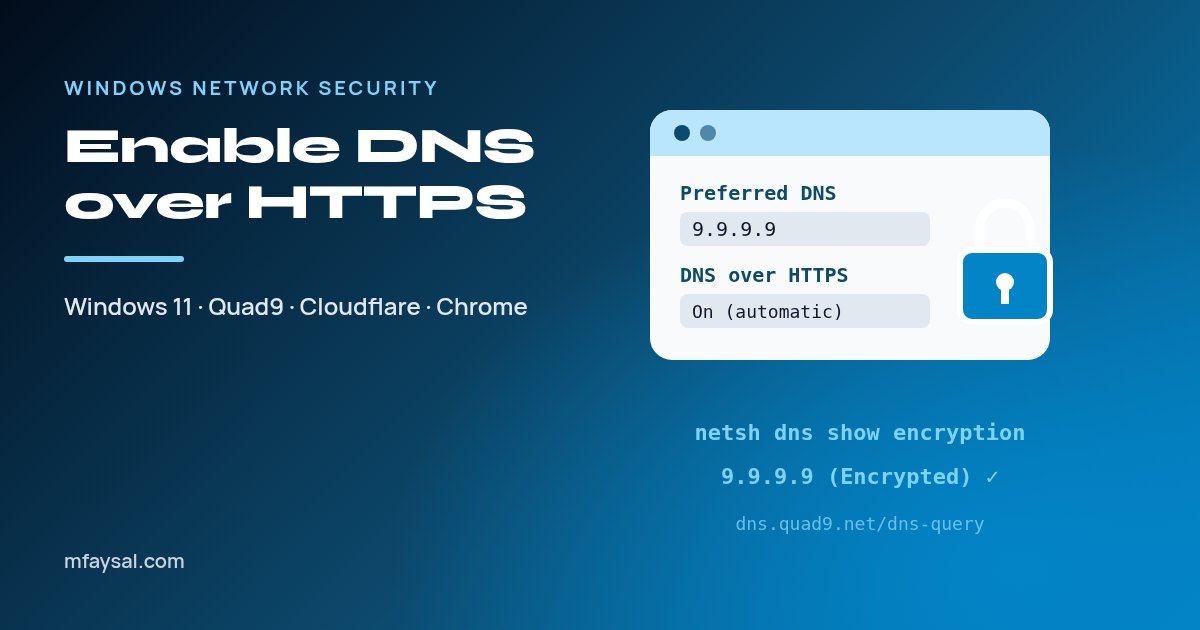
To enable DNS over HTTPS on Windows 11, open Settings > Network & internet, select Wi-Fi or Ethernet, then your connection's Hardware properties. Next to DNS server assignment, select Edit and switch from Automatic (DHCP) to Manual. Turn on IPv4, enter a supported resolver such as 9.9.9.9 and 149.112.112.112 (Quad9) or 1.1.1.1 and 1.0.0.1 (Cloudflare), and set DNS over HTTPS to On (automatic template). Save, and your DNS lookups are encrypted. Windows 10 doesn't have this option, so on Windows 10 use your browser's secure DNS setting instead.
Every time you type a web address, your PC quietly asks a DNS server to turn that name into an IP address. By default it asks your internet provider's server, and it asks in plain text. Anyone on the same network, from a café's Wi-Fi to your provider, can see the list of sites you look up.
Switching to encrypted DNS is one of the quickest privacy wins on a Windows PC. It takes about three minutes, costs nothing, and once it's set you rarely need to touch it again. The one hiccup you might hit is a hotel or café Wi-Fi login page, and I'll show you the workaround below.
This guide shows you how to choose a secure DNS resolver, turn on DNS over HTTPS in Windows 11, prove it's actually working, and set it up in your browser or with PowerShell. I'll also be honest about what it doesn't do, because encrypted DNS is useful but it isn't a VPN.
In this guide:
- What DNS over HTTPS protects, and what it doesn't
- Choose a secure DNS resolver first
- How to enable DNS over HTTPS in Windows 11 Settings
- How to check that DNS over HTTPS is really working
- The PowerShell way (and adding a custom DoH server)
- What to do on Windows 10
- Turn on secure DNS in Chrome, Edge and Firefox
- Should you change DNS on your router instead?
- When you shouldn't change your DNS
- Troubleshooting: when sites stop loading after the change
- Frequently asked questions
What DNS over HTTPS protects, and what it doesn't
DNS over HTTPS (DoH) wraps your DNS questions inside normal encrypted HTTPS traffic, the same kind your browser uses for secure websites. The standard is published as RFC 8484, and Windows 11, Chrome, Edge and Firefox all support it.
It helps with three things:
- Snooping. People on the same network can't read which domain names you look up.
- Tampering. A hacked router or hostile Wi-Fi can't easily swap in fake answers to send you to a lookalike site.
- Filtering you choose. If you pick a resolver that blocks known malicious domains, you get that protection on every network.
It doesn't hide everything. The website you connect to still sees your IP address, and your provider can still see the IP addresses you connect to. It doesn't stop malware already on your PC, and it doesn't make you anonymous. Think of it as closing one leak, not as a privacy cloak.
Choose a secure DNS resolver first
Windows 11 knows the DoH details for a short built-in list of public resolvers, so picking one of these makes setup easiest. Here's how the main free options compare.
| Resolver | IPv4 addresses | Blocks malicious domains? | Works with Windows automatic template? |
|---|
| Quad9 | 9.9.9.9 and 149.112.112.112 | Yes | Yes |
| Cloudflare 1.1.1.1 | 1.1.1.1 and 1.0.0.1 | No | Yes |
| Cloudflare for Families (malware) | 1.1.1.2 and 1.0.0.2 | Yes (malware and phishing) | No, use a manual template |
| Cloudflare for Families (malware and adult) | 1.1.1.3 and 1.0.0.3 | Yes, plus adult content | No, use a manual template |
| Google Public DNS | 8.8.8.8 and 8.8.4.4 | No | Yes |
For most home users I'd start with Quad9. It's free, it blocks known malicious domains, and Windows recognises it automatically. Quad9's service addresses page lists the IPv6 addresses (2620:fe::fe and 2620:fe::9) and its DoH address, https://dns.quad9.net/dns-query. It also says DNSSEC validation is switched on for every Quad9 address, which helps catch forged answers.
If you have children at home, Cloudflare for Families is worth a look. Its DoH address for malware blocking is https://security.cloudflare-dns.com/dns-query, and for malware plus adult content it's https://family.cloudflare-dns.com/dns-query. You'll need these for the manual template step below.
How to enable DNS over HTTPS in Windows 11 Settings
Before you start, take a screenshot of your current DNS settings, just in case. Then:
- Press Windows + I and select Network & internet.
- Select Wi-Fi or Ethernet, depending on how you're connected.
- For Wi-Fi, select Hardware properties. For Ethernet, select the connection. Don't use the properties of a single saved Wi-Fi network if you want the setting to follow you from network to network.
- Next to DNS server assignment, select Edit.
- Change Automatic (DHCP) to Manual and turn on IPv4.
- Type your Preferred DNS (for example 9.9.9.9) and Alternate DNS (149.112.112.112).
- Under DNS over HTTPS for each address, choose On (automatic template). For Cloudflare for Families, choose On (manual template) and paste the DoH address instead.
- Decide on Fallback to plaintext (more on this below), then turn on IPv6 and repeat with the IPv6 addresses if your connection uses IPv6.
- Select Save.
Back on the properties page, your DNS servers should now show (Encrypted) next to them.
Microsoft's page on essential network settings in Windows explains the two choices clearly. With Fallback to plaintext on, Windows sends a normal unencrypted query if the encrypted one fails. With it off, the query simply isn't sent. I leave fallback off on my laptop, because a silent fallback means you'd never know your DNS had stopped being private. If you'd rather never risk a broken connection, leave it on.
How to check that DNS over HTTPS is really working
The "(Encrypted)" label is a good start, but I like to see proof. There are three quick checks.
1. Ask Windows. Open Terminal or PowerShell and run:
netsh dns show encryption
This lists every resolver Windows knows a DoH template for, with its template URL and whether fallback is allowed. Then run ipconfig /all and confirm your adapter's DNS Servers line shows the addresses you entered.
2. Use your resolver's test page. If you chose Quad9, visit on.quad9.net. It should say Yes, you are using Quad9. If you chose Cloudflare, Cloudflare's 1.1.1.1 help page shows whether you're connected to 1.1.1.1 and whether you're using DNS over HTTPS.
3. Test blocking. With Cloudflare for Families, Cloudflare provides a safe test address, malware.testcategory.com, that should fail to load if malware blocking is working.
If a test page says No, don't panic. Quad9's own test page lists the usual reasons: Firefox or Brave using their own DNS, a VPN overriding your settings, iCloud Private Relay on a Mac, or mixing Quad9 with another provider's addresses. Fix the one that applies and test again.
The PowerShell way (and adding a custom DoH server)
If you look after a few PCs, or just prefer typing, PowerShell can do the same job. Open Terminal (Admin) and first find your adapter's name:
Get-NetAdapter
Then set the DNS servers, replacing "Wi-Fi" with your adapter's name:
Set-DnsClientServerAddress -InterfaceAlias "Wi-Fi" -ServerAddresses 9.9.9.9,149.112.112.112
To see which DoH servers Windows already knows about, run:
Get-DnsClientDohServerAddress
For a resolver that isn't on the built-in list, such as Cloudflare for Families, add it yourself:
Add-DnsClientDohServerAddress -ServerAddress 1.1.1.2 -DohTemplate https://security.cloudflare-dns.com/dns-query -AllowFallbackToUdp $False -AutoUpgrade $True
Repeat for the second address (1.0.0.2). -AutoUpgrade $True tells Windows to use the encrypted template automatically whenever that address is your DNS server, and -AllowFallbackToUdp $False blocks the plain-text fallback.
Microsoft's article on the secure DNS client over HTTPS documents these cmdlets and the default list of known DoH servers (Cloudflare, Google and Quad9). It's written for Windows Server 2022, but the same DNS client cmdlets are what Windows 11 uses.
Finally, clear the cache so old answers don't linger:
ipconfig /flushdns
What to do on Windows 10
Microsoft says plainly that the DNS over HTTPS setting is not available in Windows 10. You can still change your DNS servers, though, and that alone gets you malware filtering if you pick Quad9 or Cloudflare for Families.
- Open Control Panel > Network and Sharing Center > Change adapter settings.
- Right-click your Wi-Fi or Ethernet adapter and choose Properties.
- Select Internet Protocol Version 4 (TCP/IPv4), then Properties.
- Choose Use the following DNS server addresses and enter your preferred and alternate addresses.
- Select OK, then do the same for Internet Protocol Version 6 if you use IPv6.
Cloudflare's guide to set up 1.1.1.1 on Windows walks through the same steps with every Cloudflare address, including the IPv6 ones.
For the encryption part on Windows 10, turn on secure DNS in your browser (next section). It's worth remembering, too, that free security updates for Windows 10 ended on 14 October 2025, so encrypted DNS is a small fix on a system that has bigger gaps unless it's enrolled in Extended Security Updates.
Turn on secure DNS in Chrome, Edge and Firefox
Browsers can encrypt their own DNS lookups whatever Windows is doing. That's handy on Windows 10, on a work laptop where you can't change network settings, or on a phone.
- Chrome: Settings > Privacy and security > Security. Under Advanced, turn on Use secure DNS, then pick a provider from the list or choose Custom and paste a DoH address.
- Edge: Settings > Privacy, search, and services > Security, then turn on Use secure DNS to specify how to look up the network address for websites and choose a provider.
- Firefox: Settings > Privacy & Security, scroll to DNS over HTTPS, and choose a protection level and provider. Mozilla started turning DoH on by default for US users in February 2020, so American readers may already have it.
Google's page to manage Chrome safety and security notes one detail worth knowing: if you leave Chrome on your current provider, it may fall back to unencrypted DNS when a secure lookup fails, while choosing a custom provider avoids that fallback.
One caution. If Windows uses Quad9 and Firefox uses Cloudflare, your browser bypasses the Windows setting. That's not dangerous, but it can confuse test pages and any filtering you set up. Pick one provider and use it in both places.
Should you change DNS on your router instead?
Changing DNS on your router covers every device in the house at once, including smart TVs and games consoles that have no DNS settings of their own. Most home routers have a DNS field in their internet or DHCP settings.
There are trade-offs, though:
- Many ISP routers don't support encrypted DNS, so devices talk to the router in plain text even if the router forwards to Quad9.
- Some ISP routers lock the DNS setting completely.
- A laptop set to its own DNS, as in this guide, keeps its protection on any network. A router setting only helps at home.
My approach is both: a filtering resolver on the router for the whole household, and DoH on the laptops that leave the house. If you're logging into your router anyway, it's a good moment to check the admin password and firmware too. My guide on how to secure your home Wi-Fi router covers those settings step by step.
When you shouldn't change your DNS
There are a few situations where switching DNS causes more trouble than it solves.
- Work or school devices. Organisations often rely on their own DNS for internal sites and security filtering. In the UK, many public sector bodies use the NCSC's Protective Domain Name Service, which blocks known malicious domains. Overriding it removes that protection and may break things, so leave managed devices alone.
- Parental control or security software. If your antivirus, family safety app or router filtering works through DNS, a new resolver can quietly bypass it.
- VPNs. Most VPN apps set their own DNS. If you use one, change the DNS inside the VPN app instead.
- Hotel, train and café Wi-Fi. Login pages (captive portals) often need the network's own DNS. If the login page won't appear, switch DNS back to Automatic (DHCP), sign in, then switch back. Cloudflare's own setup guide suggests exactly this.
Troubleshooting: when sites stop loading after the change
If something goes wrong, it's almost always one of these.
| Problem | Likely cause | Fix |
|---|
| No websites load at all | A typo in the DNS address, or fallback off with a resolver that can't be reached | Check the addresses, or turn Fallback to plaintext on to test |
| DNS over HTTPS option is greyed out | The address isn't on Windows' known list | Use On (manual template) and paste the DoH URL, or add it with Add-DnsClientDohServerAddress |
| Sites load slowly or fail on and off | IPv6 DNS set on a connection without IPv6 | Turn the IPv6 DNS switch off |
| Hotel or café login page won't open | Captive portal needs the network's DNS | Set DNS to Automatic (DHCP), sign in, then switch back |
| Test page says you're not using the resolver | Browser DoH, VPN or mixed providers | Match the browser setting, check the VPN's DNS, use one provider only |
| A safe site is blocked | Filtering resolver flagged it | Report it to the resolver, or use an unfiltered address temporarily |
To undo everything, go back to DNS server assignment > Edit and choose Automatic (DHCP), then run ipconfig /flushdns. You're back to your provider's DNS in seconds.
If you're working through other network checks, my guide on how to check open ports is a good next step, since it shows what your PC is listening for on the network.
Frequently asked questions
Does Windows 10 support DNS over HTTPS?
Not in Settings. Microsoft states that the DNS over HTTPS setting isn't available in Windows 10. You can still change your DNS servers in the adapter's IPv4 properties, and turn on secure DNS in Chrome, Edge or Firefox to encrypt browser lookups.
Is DNS over HTTPS the same as a VPN?
No. DNS over HTTPS only encrypts the domain names your device looks up. A VPN encrypts all your traffic and hides your IP address from the sites you visit. DoH is lighter and free, but it protects much less.
Which secure DNS is best for home users?
Quad9 is a strong default because it's free, blocks known malicious domains, validates DNSSEC and is on Windows 11's built-in DoH list. Cloudflare for Families adds malware and optional adult content blocking, but needs a manual DoH template on Windows.
Should I turn off Fallback to plaintext?
Turning it off guarantees your DNS is never sent unencrypted, but if the resolver can't be reached, websites won't load. Turning it on keeps you connected but can silently drop to plain DNS. I turn it off on laptops and test with the resolver's check page.
Will changing DNS make my internet faster?
Sometimes a little, sometimes not at all. It depends on how far you are from the resolver's servers compared with your provider's. Don't change DNS only for speed. The main gains are privacy and malware filtering.
How do I check which DNS server I'm using on Windows?
Run ipconfig /all in Command Prompt or PowerShell and look at the DNS Servers line for your active adapter. In Windows 11 Settings, the connection's properties page also lists your DNS servers and shows (Encrypted) next to any using DNS over HTTPS.
Can DNS over HTTPS block malware?
Only if the resolver you choose filters malicious domains. Encryption on its own doesn't block anything. Quad9's standard addresses and Cloudflare's 1.1.1.2 and 1.1.1.3 filter known bad domains, while Cloudflare 1.1.1.1 and Google 8.8.8.8 don't.
Last checked: 26 October 2026. Figures, settings and guidance can change, so confirm anything important with the sources linked above.