To check an SSL certificate's expiry date, open the site in your browser, click the padlock or site-information icon next to the address, and view the certificate: the "Expires on" (or "Not After") date is when it runs out. From a terminal, run echo | openssl s_client -connect example.com:443 -servername example.com 2>/dev/null | openssl x509 -noout -enddate and read the notAfter line. On Windows without OpenSSL, PowerShell can read the same date as NotAfter. For anything you look after, automate it with openssl x509 -checkend so you get warned before it expires.
An expired certificate is one of the most avoidable ways to take a website down. Visitors get a scary full-page warning, APIs stop talking to each other, and everybody blames "the server" when really a date just passed quietly.
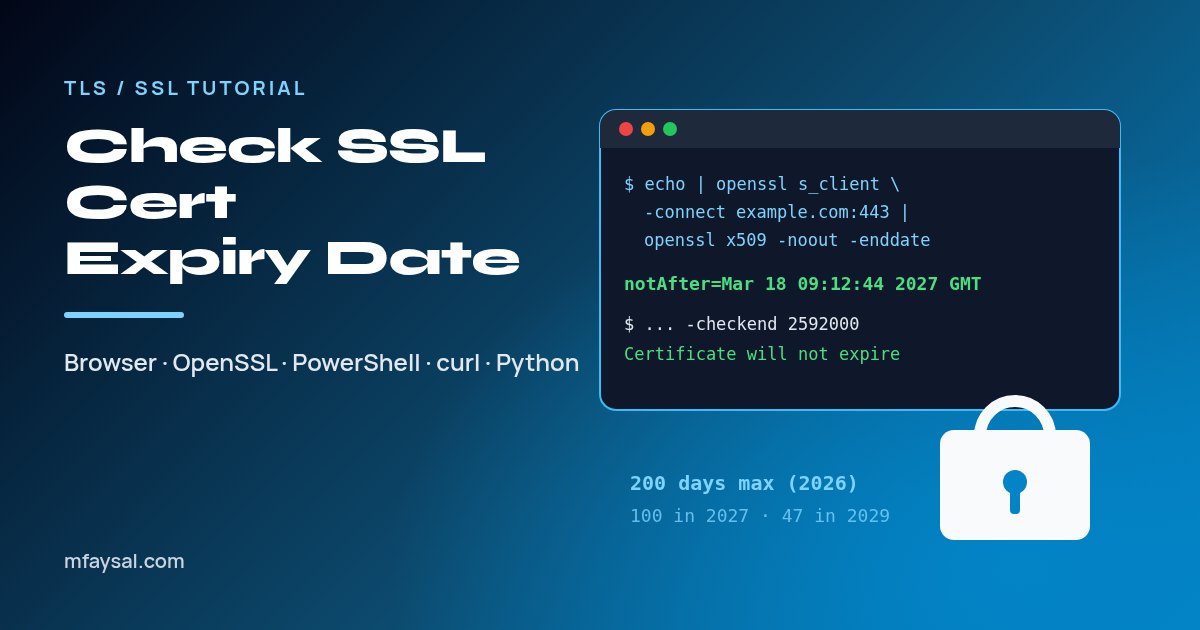
It's also getting more important to check. Public TLS certificates now last a maximum of 200 days, and that limit drops again in March 2027 and March 2029. Renewals are happening more often, so there are more chances for one to slip.
In this tutorial I'll show you five ways to check an expiry date, from a two-click browser check to copy-and-paste commands for Linux, macOS and Windows, plus a small script you can put in cron to warn you in advance. (People still say "SSL certificate", but what you're really checking is a TLS certificate. Same thing for our purposes.)
In this guide:
- Quick reference: every method at a glance
- Method 1: Check the expiry date in your browser
- Method 2: Check it with OpenSSL on Linux or macOS
- Method 3: Check it on Windows (OpenSSL or PowerShell)
- Method 4: Check it with curl or Python
- Method 5: Check a certificate file (.pem, .crt, .cer or .pfx)
- Get warned before a certificate expires (simple script)
- Why certificate lifetimes keep getting shorter
- Common mistakes that give the wrong answer
- What to do if your certificate has already expired
- Frequently asked questions
Quick reference: every method at a glance
If you just need the command, here you go. The rest of the guide explains each one and the mistakes that give wrong answers.
| Where you are | Method | What to read |
|---|
| Any browser | Padlock or site-information icon, then view certificate | Expires on / Not After |
| Linux or macOS terminal | openssl s_client ... | openssl x509 -noout -enddate | notAfter= |
| Windows PowerShell (no OpenSSL) | .NET SslStream and X509Certificate2 | NotAfter (shown in local time) |
| Anywhere with curl | curl -vI https://example.com | expire date: line |
| Python 3 | ssl module, getpeercert() | notAfter |
| A certificate file | openssl x509 -in cert.pem -noout -enddate | notAfter= |
| Windows certificate store | Get-ChildItem Cert:\LocalMachine\My | NotAfter |
Every certificate has two dates: notBefore (when it starts being valid) and notAfter (when it stops). "Expiry date" always means notAfter.
Method 1: Check the expiry date in your browser
This is the easiest way and works for any public website. The exact labels move around between browser versions, but the idea is the same everywhere.
Chrome and Edge
- Open the website.
- Click the icon to the left of the address (a padlock, or a "tune" icon with two sliders in newer Chrome).
- Click Connection is secure, then Certificate is valid (Chrome) or the certificate icon (Edge).
- In the certificate viewer, look at the Validity period section for Expires on.
Firefox
- Click the padlock next to the address.
- Choose Connection secure, then More information.
- Click View Certificate and look at Validity for Not After.
Safari on a Mac
- Click the padlock in the address bar.
- Click Show Certificate and expand Details if needed.
- Read the Expires date.
The browser check is great for a quick look, but it only shows the certificate your browser received from that one server. If a site runs behind a CDN or several load-balanced servers, a command-line check of each name and server is more thorough.
Method 2: Check it with OpenSSL on Linux or macOS
OpenSSL is installed on almost every Linux server and on macOS (where it's actually LibreSSL, which supports the same options used here). This one command connects to the site and prints the expiry date:
echo | openssl s_client -connect example.com:443 -servername example.com 2>/dev/null \
  | openssl x509 -noout -enddate
The output looks like notAfter=Mar 18 09:12:44 2027 GMT. Here's what each piece does:
s_client -connect example.com:443 opens a TLS connection to the server.-servername example.com sends the hostname (called SNI). Shared hosting and CDNs use it to decide which certificate to send, so leave it in.echo | closes the connection straight away, so the command doesn't sit waiting.2>/dev/null hides the connection chatter.openssl x509 -noout -enddate reads the certificate and prints only the end date.
Useful variations:
# Both start and end dates
echo | openssl s_client -connect example.com:443 -servername example.com 2>/dev/null | openssl x509 -noout -dates

# Who it's for, who issued it, and every hostname it covers
echo | openssl s_client -connect example.com:443 -servername example.com 2>/dev/null | openssl x509 -noout -subject -issuer -ext subjectAltName

# Does it expire within 30 days? (2592000 seconds)
echo | openssl s_client -connect example.com:443 -servername example.com 2>/dev/null | openssl x509 -noout -checkend 2592000
The last one prints "Certificate will not expire" and exits with status 0, or "Certificate will expire" with status 1. That exit code is what makes it perfect for scripts. All of these options are documented in the official openssl x509 manual.
Checking a mail server or something on a non-standard port? Just change the port, for example -connect mail.example.com:465. For services that start in plain text and upgrade, such as SMTP on port 587, add -starttls smtp.
Method 3: Check it on Windows (OpenSSL or PowerShell)
On Windows you have two choices: use OpenSSL if you've installed it (it comes with Git for Windows, for example), or use PowerShell, which needs nothing extra.
OpenSSL in PowerShell
The Linux command doesn't work as-is in PowerShell, because echo with nothing after it errors and /dev/null doesn't exist. This version works:
"" | openssl s_client -connect example.com:443 -servername example.com 2>$null | openssl x509 -noout -enddate
In the old Command Prompt (cmd.exe), use 2>nul instead of 2>$null.
PowerShell with no extra tools
PowerShell can open a TLS connection itself using .NET. Paste this in, changing the hostname on the first line:
$h = "example.com"
$tcp = [System.Net.Sockets.TcpClient]::new($h, 443)
$ssl = [System.Net.Security.SslStream]::new($tcp.GetStream())
$ssl.AuthenticateAsClient($h)
$cert = [System.Security.Cryptography.X509Certificates.X509Certificate2]::new($ssl.RemoteCertificate)
$cert | Select-Object Subject, Issuer, NotBefore, NotAfter
"Days left: {0}" -f ($cert.NotAfter - (Get-Date)).Days
$ssl.Dispose(); $tcp.Dispose()
Two things to know. First, AuthenticateAsClient also validates the certificate, so if it has already expired you'll get an error instead of dates, which is itself your answer. Second, NotAfter is shown in your computer's local time, not UTC, as Microsoft's documentation for X509Certificate2.NotAfter explains. OpenSSL prints GMT, so don't be surprised if the two look a few hours apart.
Certificates installed on a Windows machine
To list certificates in the local machine's personal store (handy for IIS servers), run this in an elevated PowerShell window:
Get-ChildItem Cert:\LocalMachine\My | Sort-Object NotAfter | Select-Object Subject, NotAfter, Thumbprint
Method 4: Check it with curl or Python
curl
curl prints certificate details in its verbose output when it's built with OpenSSL (the usual case on Linux and macOS):
curl -svI https://example.com 2>&1 | grep -iE "expire date|subject:|issuer:"
Look for the expire date: line. Windows' built-in curl.exe uses a different TLS library and may not print these lines, so use PowerShell there instead.
Python 3
If you're writing a monitoring script or checking lots of domains, Python's standard library is enough. No packages to install:
import socket, ssl
from datetime import datetime, timezone

def cert_expiry(host, port=443):
    ctx = ssl.create_default_context()
    with socket.create_connection((host, port), timeout=10) as sock:
        with ctx.wrap_socket(sock, server_hostname=host) as tls:
            cert = tls.getpeercert()
    ts = ssl.cert_time_to_seconds(cert["notAfter"])
    return datetime.fromtimestamp(ts, tz=timezone.utc)

for host in ["example.com", "www.example.com"]:
    exp = cert_expiry(host)
    days = (exp - datetime.now(timezone.utc)).days
    print(f"{host}: expires {exp:%Y-%m-%d %H:%M} UTC ({days} days left)")
Like PowerShell, the default context validates the certificate, so an expired or untrusted one raises ssl.SSLCertVerificationError. Wrap the call in try/except if you want your script to report that and carry on with the next domain.
Method 5: Check a certificate file (.pem, .crt, .cer or .pfx)
Sometimes you have the certificate file rather than a live site, for example before you install a renewed certificate. Check it before you deploy it:
# PEM / CRT file (text that starts with -----BEGIN CERTIFICATE-----)
openssl x509 -in certificate.crt -noout -enddate

# DER-encoded .cer file (binary)
openssl x509 -in certificate.cer -inform der -noout -enddate

# PFX / P12 bundle (you'll be asked for its password)
openssl pkcs12 -in bundle.pfx -nokeys -clcerts | openssl x509 -noout -enddate
With older .pfx files, OpenSSL 3 sometimes refuses to read the encryption they use; adding -legacy to the pkcs12 command usually fixes that. On Windows without OpenSSL, certutil -dump certificate.cer prints the details, including the NotAfter date.
A classic trap: the file on disk might already be renewed while your web server is still serving the old certificate from memory. Always check the live site after renewing, using Method 2, 3 or 4.
Get warned before a certificate expires (simple script)
Checking by hand is fine once. For anything you're responsible for, let a script do it every day. Here's a small Bash script that checks several domains and warns about any that expire within 21 days:
#!/usr/bin/env bash
# cert-check.sh: warn about certificates expiring soon
DAYS=21
for host in example.com www.example.com api.example.com; do
  if ! echo | openssl s_client -connect "$host:443" -servername "$host" 2>/dev/null \
       | openssl x509 -noout -checkend $((DAYS * 86400)) >/dev/null 2>&1; then
    end=$(echo | openssl s_client -connect "$host:443" -servername "$host" 2>/dev/null \
          | openssl x509 -noout -enddate 2>/dev/null | cut -d= -f2)
    echo "WARNING: $host certificate expires soon (or could not be read): $end"
  fi
done
Make it executable with chmod +x cert-check.sh, then run it daily from cron, for example at 8am:
0 8 * * * /home/you/cert-check.sh | mail -s "Certificate check" you@example.com
The mail command needs a mail setup on the server; if you don't have one, send the output to a chat webhook or a log file your monitoring already watches. If you can't open port 443 to a host, the script will also flag it, which is a useful warning in itself. (If you're not sure what's actually listening, my guide on how to check open ports helps.)
A sensible warning window is about a third of your certificate's lifetime. With 90-day automated certificates, 21 to 30 days gives you plenty of time to notice a failed renewal.
Why certificate lifetimes keep getting shorter
If it feels like you're renewing certificates more often, you are. The CA/Browser Forum, the group of certificate authorities and browser makers that sets the rules, passed a ballot that steps the maximum lifetime of public TLS certificates down over several years:
| Certificates issued from | Maximum lifetime |
|---|
| Before 15 March 2026 | 398 days |
| 15 March 2026 | 200 days |
| 15 March 2027 | 100 days |
| 15 March 2029 | 47 days |
You can read the full schedule in CA/Browser Forum Ballot SC-081v3. Some certificate authorities set their limits a day shorter than the maximum to stay safely inside the rules.
What this means in practice: manual renewals once a year are on the way out. If you still buy a certificate and install it by hand, now is the time to move to automated renewal with ACME (the protocol used by Let's Encrypt, certbot and most hosting control panels), and to keep an expiry check running as a safety net in case automation silently breaks.
Common mistakes that give the wrong answer
| Mistake | What goes wrong | Fix |
|---|
Leaving out -servername (or connecting by IP) | A shared server sends its default certificate, which may belong to another site | Always pass the hostname as SNI |
Checking only example.com | www., api. or mail. may use different certificates and servers | Check every hostname people and systems actually use |
| Checking the CDN, not the origin | The CDN's certificate is fine, but an expired origin certificate breaks the connection behind it | Check the origin server's own address too |
| Checking the file, not the live server | The server is still using the old certificate until it's reloaded | Reload the web server after renewal, then recheck live |
| Mixing time zones | OpenSSL shows GMT, PowerShell shows local time | Convert before comparing |
| Relying on reminder emails | Some providers no longer send them | Run your own check |
That last one catches people out. Let's Encrypt, for example, has ended its expiration email service, so if you used to wait for that email, you now need your own monitoring.
What to do if your certificate has already expired
- Renew it. With certbot, run
sudo certbot renew (add --dry-run first if you want to test). On cPanel or Plesk hosting, use the SSL/TLS or AutoSSL section to reissue it. For a paid certificate, reissue it in your certificate provider's dashboard. - Install it and reload the server. For example
sudo systemctl reload nginx or sudo systemctl reload apache2. A reload picks up the new file without dropping connections. - Check the live site again with one of the methods above, for every hostname.
- Find out why automation failed. Common causes are a changed DNS record, a firewall blocking the validation request on port 80, or a renewal timer that was never enabled (check with
systemctl list-timers). - Add monitoring so it doesn't happen again: the script above, or an uptime service that checks certificates.
And if you're tightening up a server anyway, it's a good moment to review remote access too; my guide on how to secure an SSH server covers the essentials.
Frequently asked questions
How do I check when an SSL certificate expires?
In a browser, click the padlock or site-information icon, open the certificate and read the Expires on or Not After date. From a terminal, run openssl s_client with -servername, pipe it into openssl x509 -noout -enddate, and read the notAfter line.
What is notAfter in an SSL certificate?
notAfter is the date and time when the certificate stops being valid, in other words its expiry date. notBefore is the date it starts being valid. OpenSSL prints both with the -dates option.
How can I check an SSL certificate expiry date on Windows?
Use PowerShell: open a TcpClient and SslStream to the host, wrap the remote certificate in X509Certificate2 and read NotAfter. If OpenSSL is installed, you can also pipe an empty string into openssl s_client and redirect errors to $null.
How long are SSL certificates valid for now?
Public TLS certificates issued from 15 March 2026 can be valid for up to 200 days. Under CA/Browser Forum Ballot SC-081v3 that drops to 100 days from 15 March 2027 and 47 days from 15 March 2029.
What happens when an SSL certificate expires?
Browsers show a full-page security warning such as 'Your connection is not private', many visitors leave, and apps or APIs that validate certificates refuse to connect. The site's data isn't exposed, but it effectively becomes unusable until the certificate is renewed.
How do I check if a certificate expires within 30 days?
Pipe the certificate into openssl x509 -noout -checkend 2592000. It prints 'Certificate will expire' and returns exit status 1 if it expires within 30 days, which makes it easy to use in scripts and cron jobs.
Why does the browser show a different certificate from my server?
You may be seeing a CDN or load balancer certificate, a different hostname such as www, or an old certificate that the server hasn't reloaded yet. Check each hostname with -servername and check the origin server directly.
Last checked: 28 October 2026. Figures, settings and guidance can change, so confirm anything important with the sources linked above.