Coding tips
Why Is My Hard Drive Smaller Than Advertised? GB vs GiB
A drive sold as 1TB shows as about 931GB in Windows because the two use different units.
Test your mic in under a minute: watch the level meter, record a playback, then confirm the right device in Windows, macOS, iPhone, Android, Discord, Zoom, Teams or Meet.
You join a call, say hello, and get nothing but blank faces and "you're on mute" in the chat. Then you find out you weren't on mute at all. Your mic just wasn't working. Most of us have been there, usually five minutes before something that matters.
The good news is that testing a microphone takes less than a minute once you know where to look. This guide walks you through every reliable method: a quick online mic test, the built-in checks in Windows and macOS, simple tricks for iPhone and Android, and the hidden test buttons inside Discord, Zoom, Teams and Google Meet. You'll also learn how to read the results and fix the most common problems.
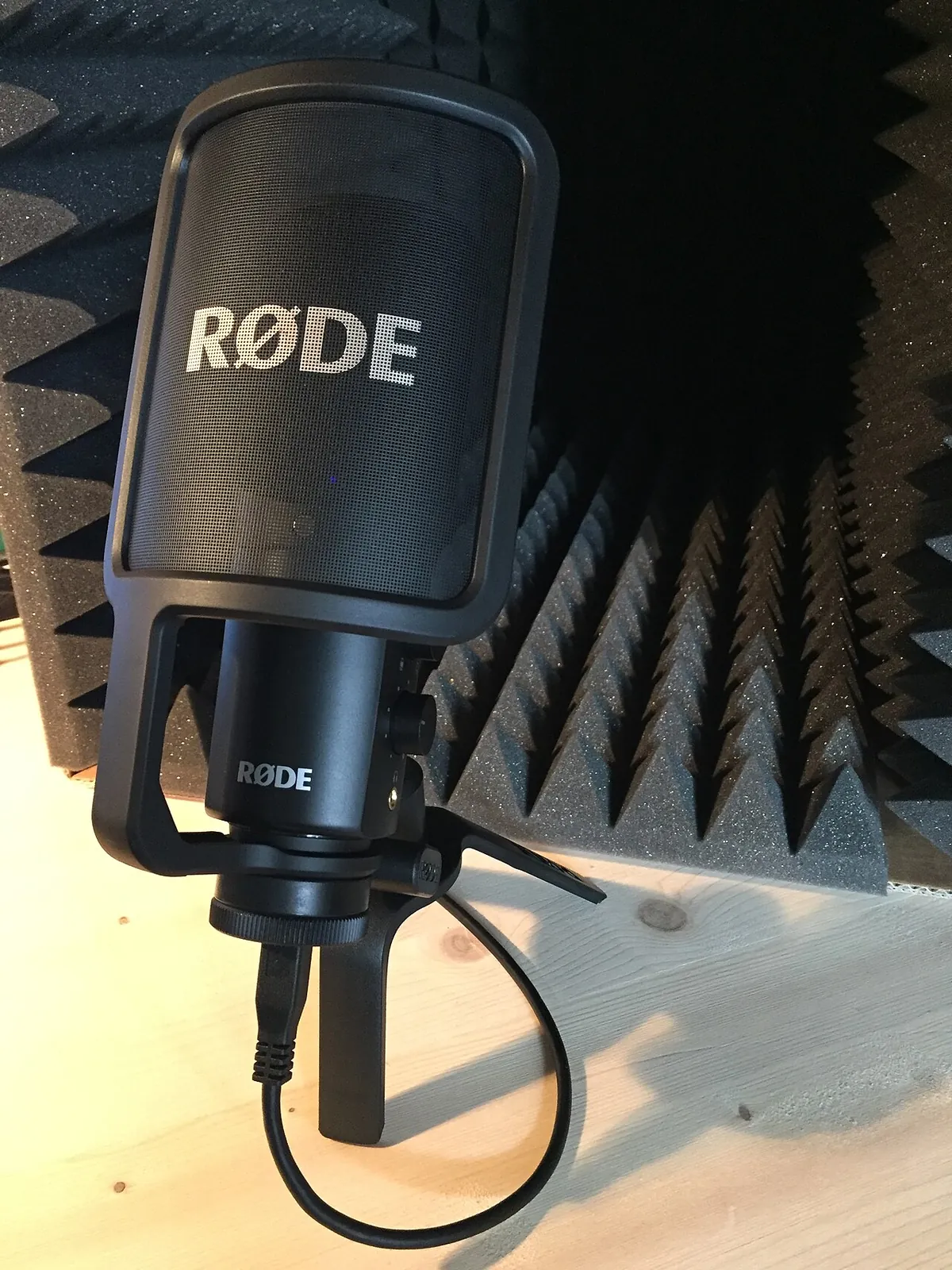
Photo: Max Lankau, CC BY-SA 4.0, via Wikimedia Commons
If you only have a minute, do this. It works on almost any laptop, desktop or phone with a modern browser.
A moving meter tells you the mic is connected. The playback tells you whether it sounds good. You need both checks, because a mic can pick up sound perfectly well and still sound muffled, distant or full of hiss.
Many people stop testing the moment they see a bar move. That catches a dead mic, but it misses half the problems your colleagues or teammates will actually notice. A proper microphone test looks at five things.
| What to check | What "good" looks like | What a problem sounds like |
|---|---|---|
| Signal | The level meter moves every time you speak | The bar stays flat or barely flickers |
| Level | Normal speech fills the middle of the meter | Too quiet to hear, or slamming into the red |
| Clarity | Your voice sounds natural and close | Muffled, thin, tinny or "underwater" |
| Noise | Silence between words stays quiet | Constant hiss, hum, fan noise or keyboard clatter |
| Device | The test uses the mic you meant to use | Your laptop's built-in mic picks you up instead of your headset |
That last row catches people out all the time. Your computer can have three or four inputs at once: the laptop mic, the webcam mic, a headset and a USB mic. Most apps simply grab whichever one the system calls "default", so always confirm the device name before you trust the result.
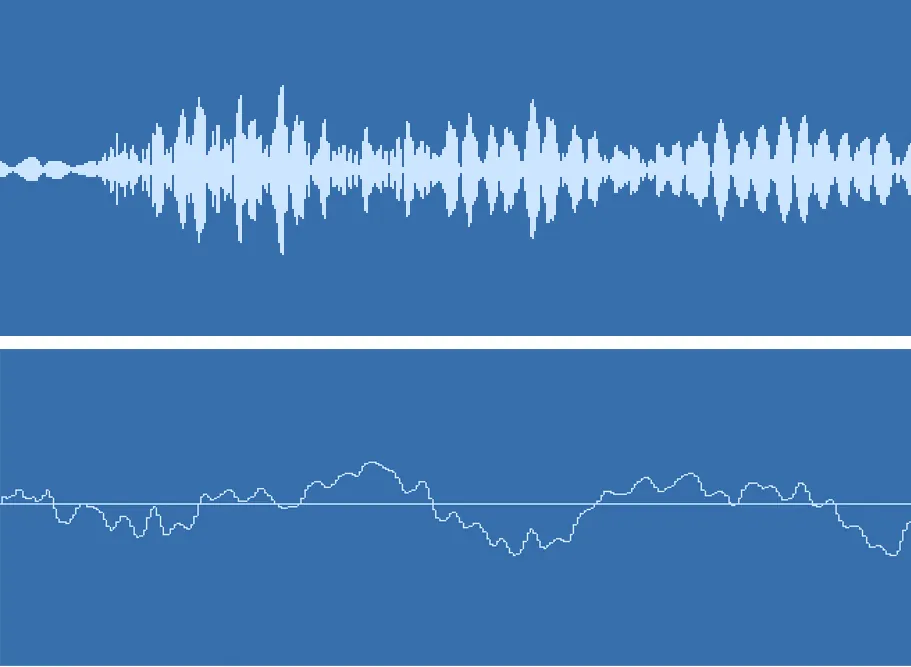
Photo: Ktmartin, CC BY 4.0, via Wikimedia Commons
Most meters show green, yellow and red zones. Green means a healthy signal, yellow means you're loud, and red means the signal is clipping, which you'll hear as crunchy distortion.
As a rough rule, aim for normal speech to sit around the middle of the meter, with loud laughs occasionally touching yellow. If your tool shows decibels (dBFS), many people aim for speaking peaks somewhere between about -18 and -6 dBFS. Anything that keeps hitting 0 dBFS is too hot, so turn the input volume down or sit a little further back.
An online microphone test is the quickest way to check a mic because you don't need to open settings menus or install anything. It also tests the exact path your browser uses, which matters for Google Meet, Teams on the web, and any other browser-based calling tool.
Our free mic test shows a live level meter, lets you choose between connected microphones, and records a five-second clip you can play straight back. The audio stays in your browser, so the tool never uploads your voice anywhere.
Here's how to get a clean result:
Websites can't touch your microphone without your say-so. Modern browsers only allow mic access on secure (HTTPS) pages, and they hide your device names until you click Allow. So if the device list looks empty or just says "Default", you probably haven't granted access yet.
Windows 11 has a proper microphone test built into Settings, and it now records a sample you can play back. You'll find the steps in Microsoft's own guide on testing microphones in Windows, but here's the short version.
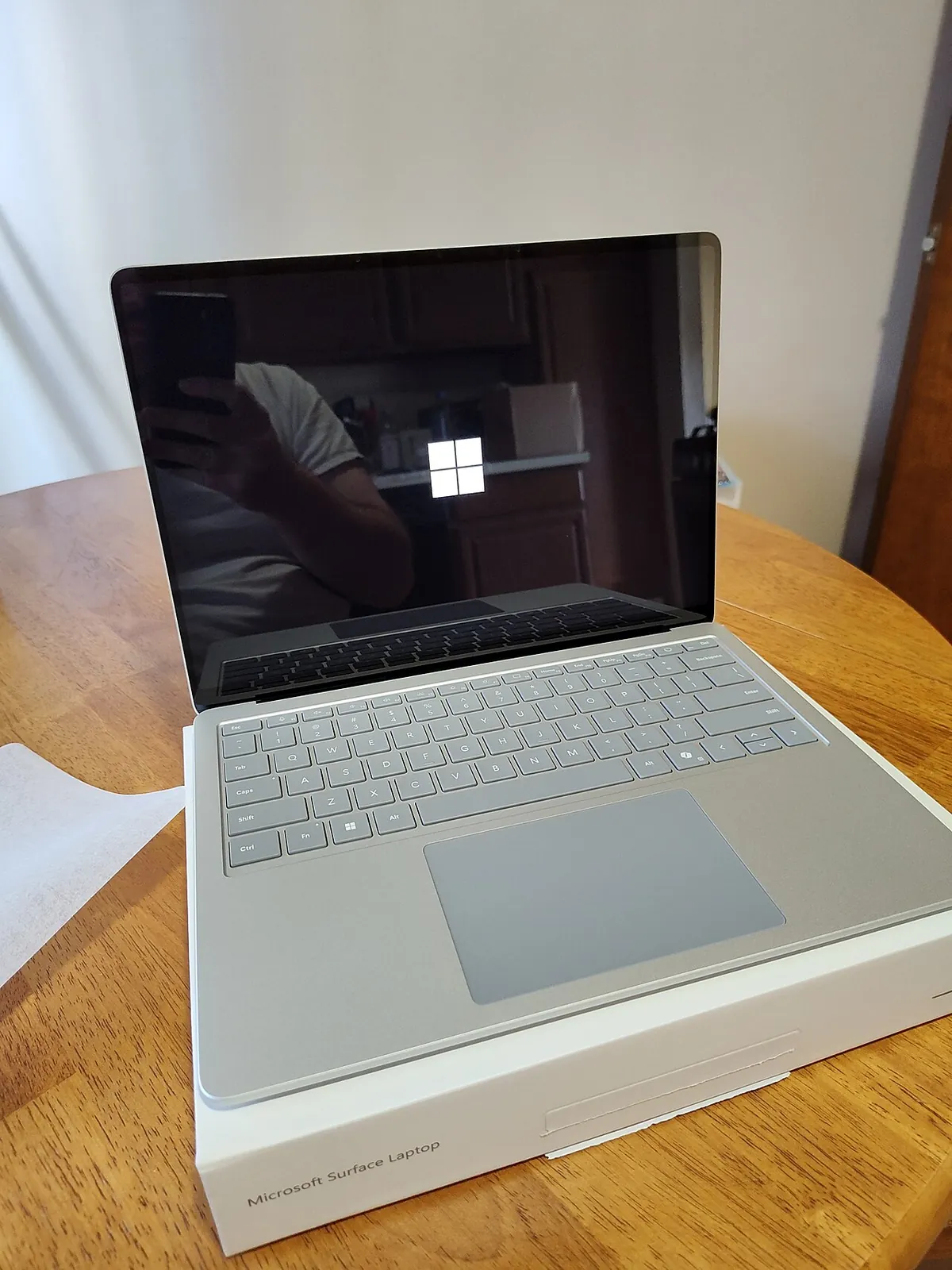
Photo: StrangeApparition2011, CC0, via Wikimedia Commons
On Windows 11 version 24H2 and later, the test page also offers a test mode for audio processing. "Default" suits recording and streaming, while "Communications" mimics the voice processing that calling apps apply. Try both and listen for the difference, because it shows you roughly how you'll sound on a call.
If the Settings test works but Zoom or Teams hears nothing, privacy settings usually cause it. Go to Settings > Privacy & security > Microphone and make sure these three switches are on:
Still stuck? Open Settings > System > Sound, scroll to Troubleshoot common sound problems and choose Input devices. Windows will check drivers, mute states and permissions for you.
Microsoft ended free support for Windows 10 on 14 October 2025, so new fixes and driver updates now land on Windows 11 first. The mic test still works on Windows 10: go to Settings > System > Sound, pick your input, and watch the live level bar while you talk. The privacy switches sit under Settings > Privacy > Microphone.
macOS gives you a live input meter rather than a record-and-play button, so you'll test in two steps: watch the meter, then make a short recording. Apple explains the Sound settings in its guide to Mac input settings.
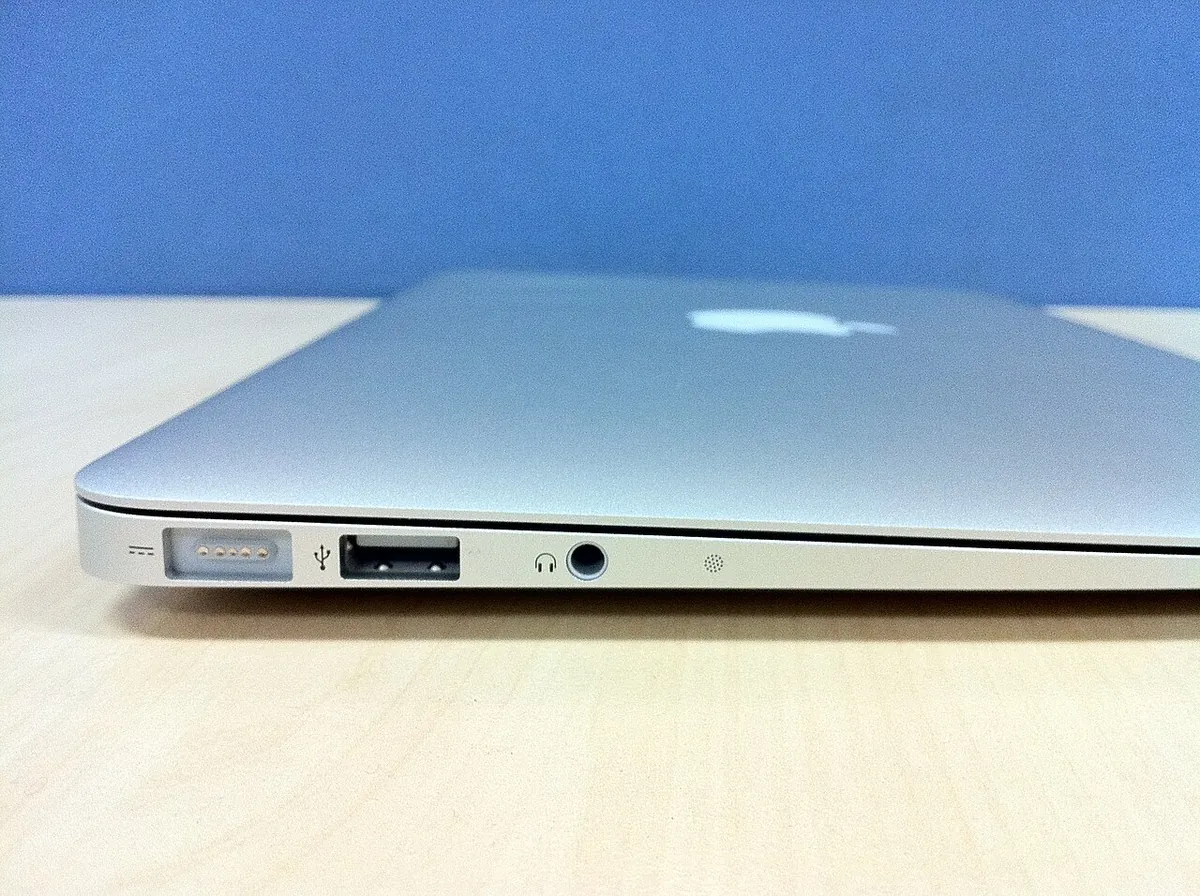
Photo: Julien GONG Min, CC BY 2.0, via Wikimedia Commons
To hear yourself, open QuickTime Player, choose File > New Audio Recording, pick your mic from the small arrow next to the record button, and record a few sentences. The Voice Memos app on your Mac works just as well.
Some Mac models also show a Use ambient noise reduction option for the built-in mic. Turn it on if the room is noisy, and compare a recording with it on and off.
Open System Settings > Privacy & Security > Microphone and switch on the app you need, such as Zoom, Chrome or Discord. If the app doesn't appear in the list, quit it and open it again so it can ask for permission. You'll also see an orange dot in the menu bar whenever an app is using the microphone, which is a handy way to confirm something is actually listening.
iPhones don't have a "mic test" menu, but Apple's own support team uses two simple apps to check them: Voice Memos and Camera. Their guide on iPhone microphone problems recommends this process.
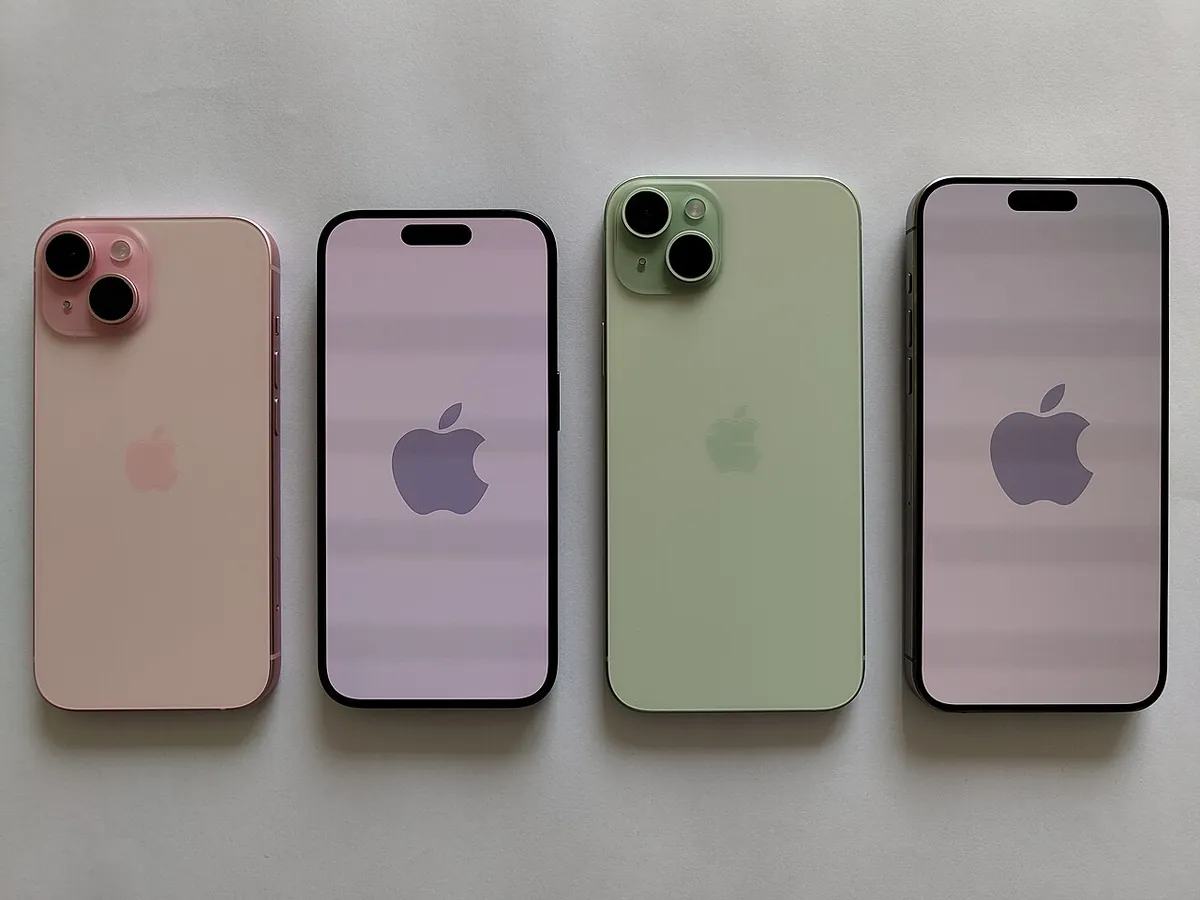
Photo: Commons user IPHONE 15, CC BY-SA 4.0, via Wikimedia Commons
If one recording sounds muffled and the others sound fine, you've found the weak microphone. If everything sounds clear but WhatsApp or Teams still can't hear you, go to Settings > Privacy & Security > Microphone and turn that app on.
During a call or recording, swipe down to open Control Center and tap the app's controls to see the Mic Mode. Voice Isolation cuts background noise, while Wide Spectrum lets everything in. According to Apple, you need iOS 26 or later to use Voice Isolation inside recording apps like Voice Memos, so older software won't show it there. If people say you sound "far away" or robotic, switch the mode and test again.
Android phones vary a lot by brand, but the testing idea stays the same: record yourself, listen back, and check permissions. Start with the built-in Recorder or Voice Recorder app, or simply record a short video with the camera.
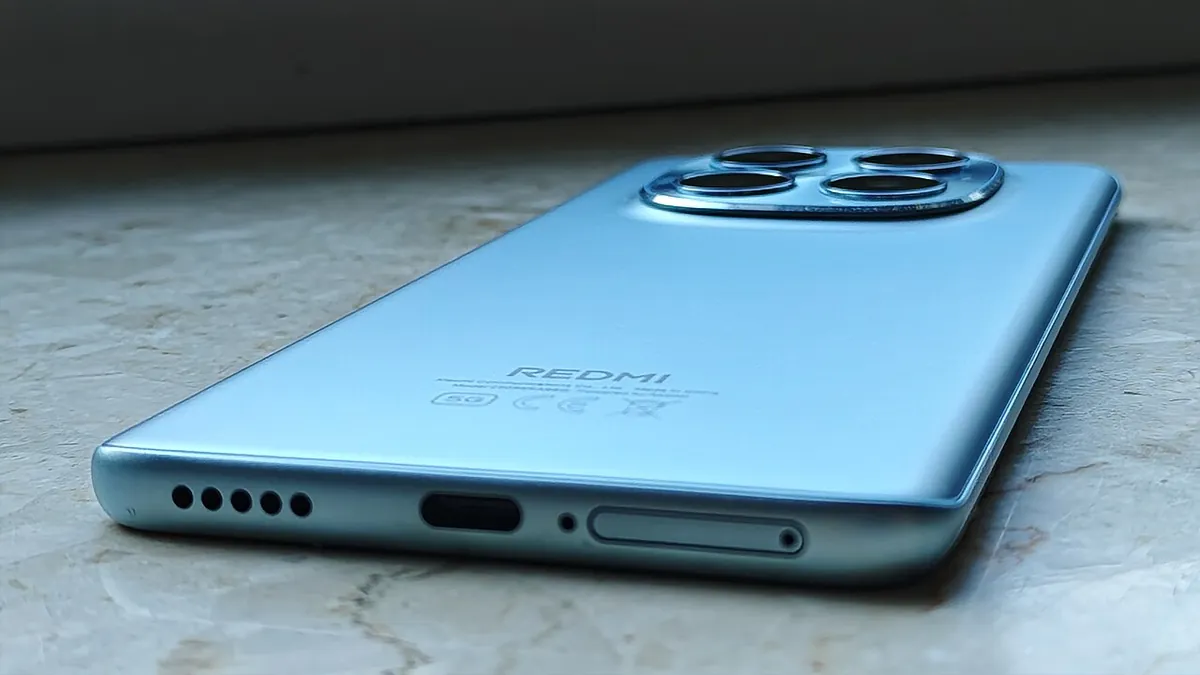
Photo: Maksdroider, CC BY-SA 4.0, via Wikimedia Commons
Recent Android versions include a Microphone access tile in Quick Settings that blocks the mic for every app at once. It's easy to tap by accident. Swipe down twice from the top of the screen and make sure the tile is on. Google's help page on Android camera and mic status shows where to find it and how to add the tile if it's missing.
For a single app, go to Settings > Apps, choose the app, tap Permissions > Microphone, and select Allow only while using the app. Samsung, Pixel and other phones label these menus slightly differently, but the path looks similar.
Discord has its own mic test, and it's the one to trust before a gaming session, because Discord applies its own noise suppression and sensitivity settings on top of your system. Discord's support page on Mic Testing notes that the feature only appears on desktop and in the browser.
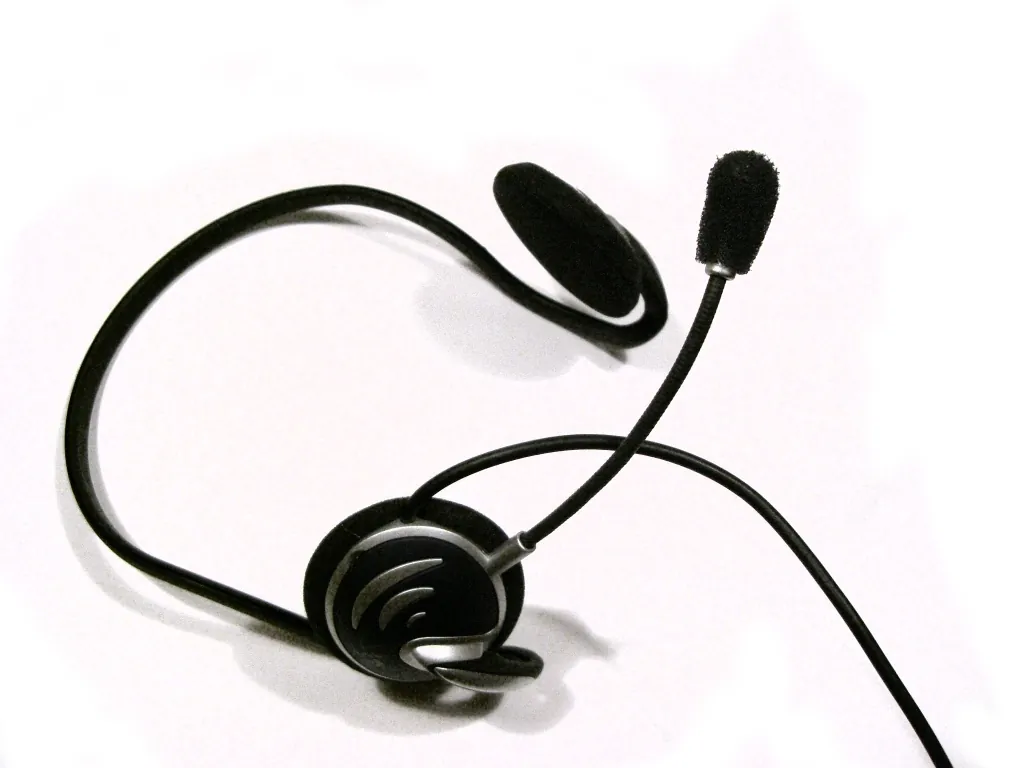
Photo: Zephyris, CC BY-SA 3.0, via Wikimedia Commons
Heads up: if you run the test while you sit in a voice channel, Discord mutes and deafens you until you stop. Your friends won't hear you during the test.
If your voice drops out mid-sentence, the input sensitivity threshold sits too high. Turn off Automatically determine input sensitivity, drag the slider to the left, then nudge it right until background noise stops triggering the green bar while your normal voice still does. Also confirm that Input Mode says Voice Activity, not Push to Talk, unless you meant to use a key.
Every calling app keeps its own device list, so a mic that passes in Windows can still fail in Zoom. Test inside the app you'll actually use, ideally a few minutes before the call starts.
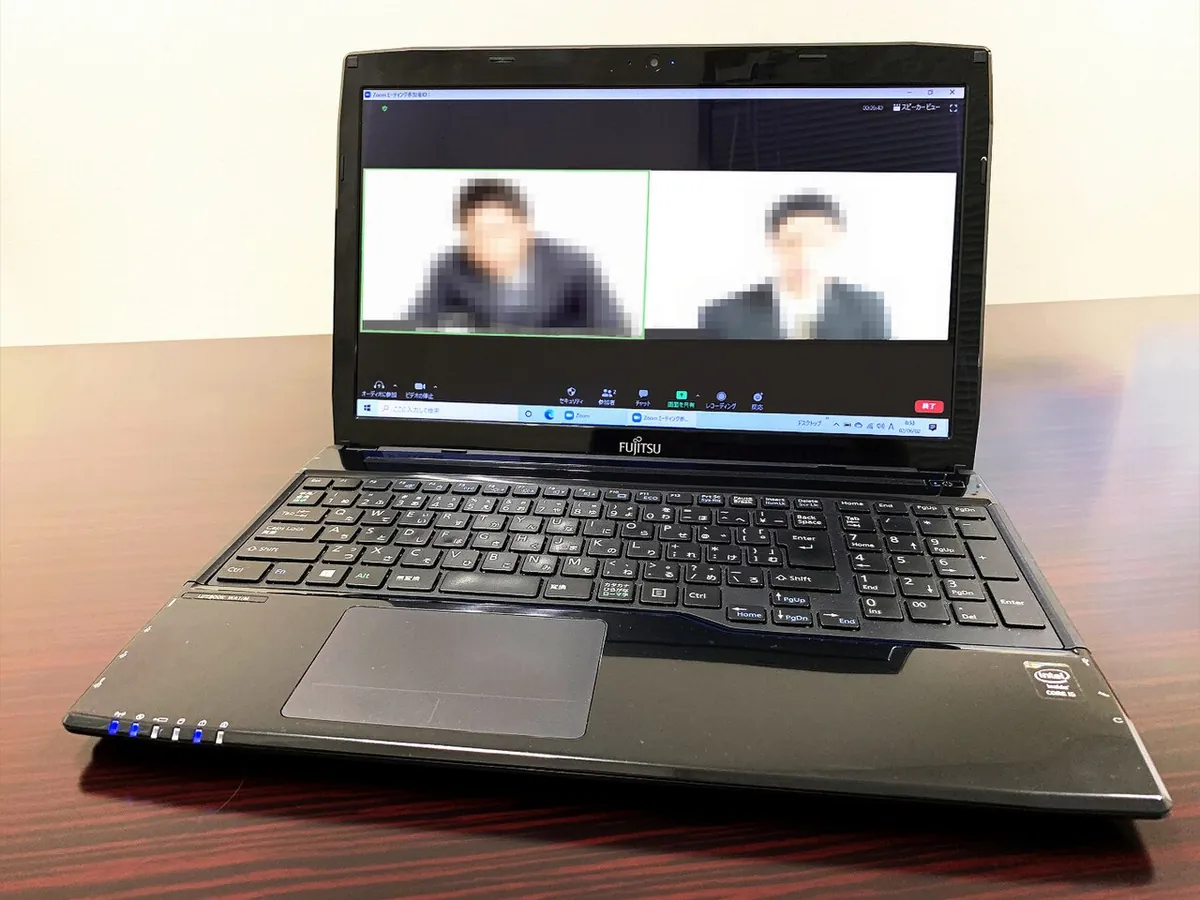
Photo: Project Kei, CC BY-SA 4.0, via Wikimedia Commons
Zoom offers two easy options, both covered in its guide to testing Zoom audio:
If you can't hear the replay, pick another microphone from the drop-down and try again. Zoom's own device list often defaults to the laptop mic, even with a headset plugged in.
In the Teams desktop app, open Settings and more (…) > Settings > Devices and choose Make a test call. A test bot asks you to record a short message, then plays it back so you can judge your mic and speakers in one go. The test call works in the Windows and Mac apps but not in Teams on the web, and some free personal accounts don't show it.
Meet gives you a preview screen (often called the green room) before you join. Speak and watch the small level indicator next to your mic, or use Check your audio and video to record a short clip. You can switch mic, speaker and camera from the drop-downs on that same screen.
Headsets cause more mic trouble than any other gear, mostly because of connectors and Bluetooth quirks. A few checks solve most of it.
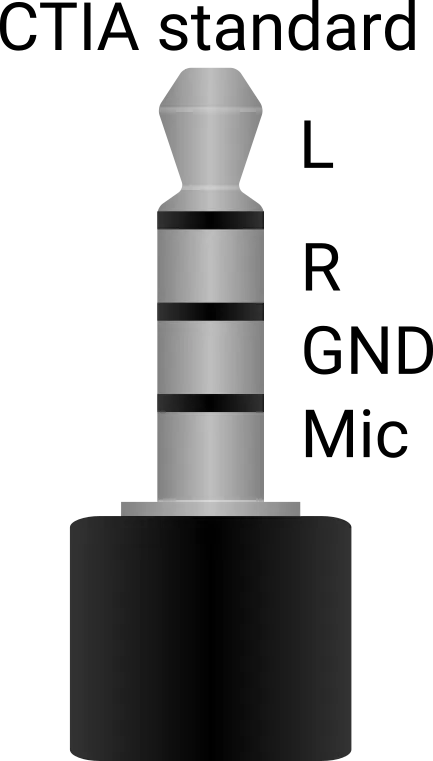
Photo: Benedikt.Seidl, CC BY-SA 3.0, via Wikimedia Commons
Classic Bluetooth earbuds and headsets switch to a calling profile the moment an app opens the mic. Microsoft's driver documentation notes that this "hands-free" mode typically runs in mono at 8 or 16 kHz, which explains why your music suddenly sounds flat when you join a call and why your voice can sound like an old phone line.
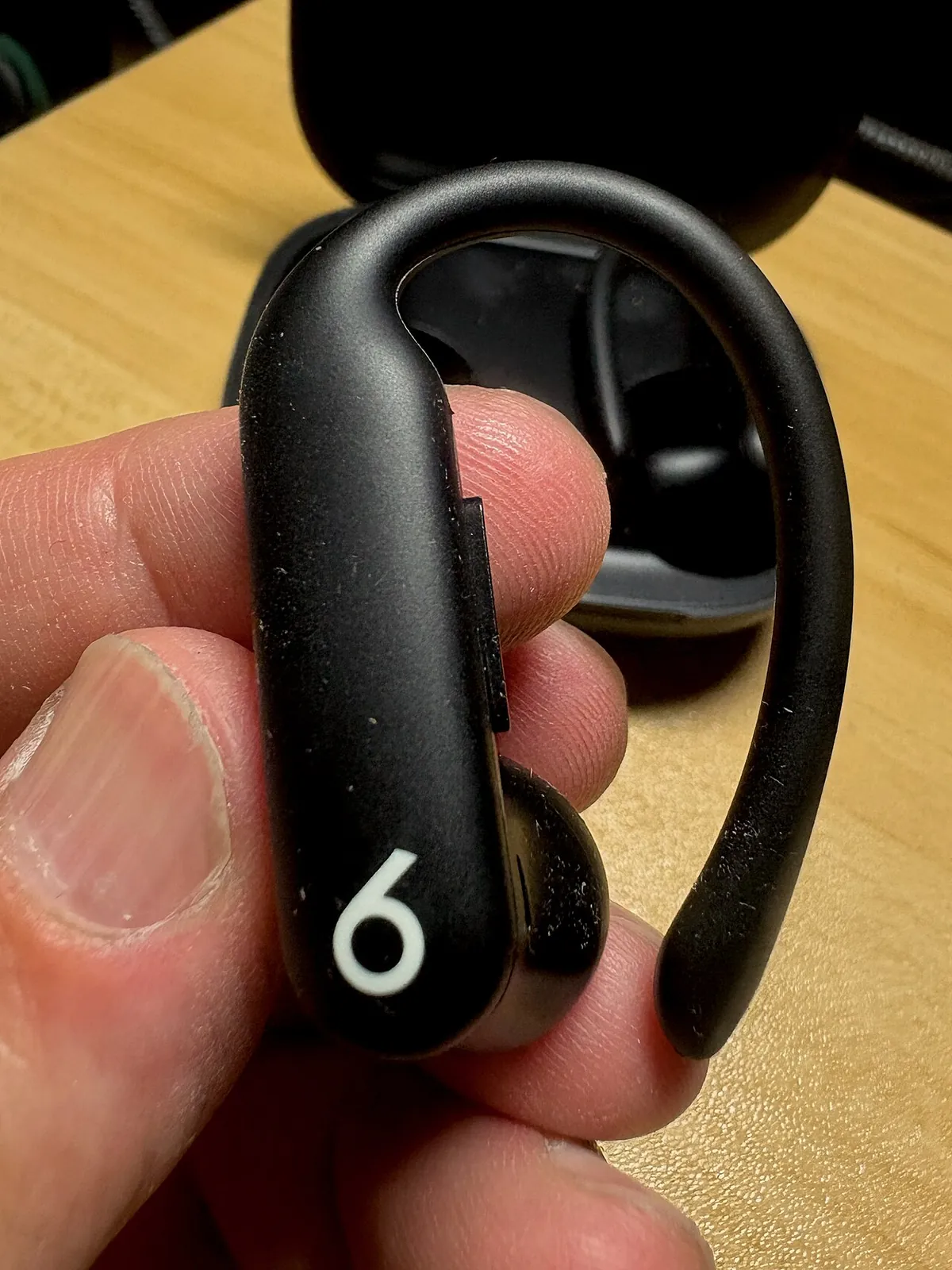
Photo: Kyu3a, CC BY-SA 4.0, via Wikimedia Commons
Newer hardware does better. On compatible Windows 11 PCs with an LE Audio headset, Windows can keep higher-quality "super wideband" audio while the mic stays active. Microsoft explains the requirements in its guide to Bluetooth LE Audio settings. If your setup doesn't support it, a wired or USB headset still gives you the clearest voice for important calls.
Match what you see during the test to the most likely cause. Start with the first fix in each row, because it solves the problem most of the time.
| What happens | Most likely cause | What to try |
|---|---|---|
| Meter never moves | Wrong device or muted hardware | Select the mic by name, check the mute switch, raise input volume |
| Browser says "blocked" | Site permission denied | Allow the mic in site settings, then reload the page |
| "Mic in use by another app" | Another app holds the mic | Quit Zoom, Teams, Discord or OBS, then test again |
| Works in settings, not in an app | App permission or app device list | Turn on the app's mic permission and pick the same device inside the app |
| Very quiet voice | Low gain or mic too far away | Raise input volume, move within a hand's width or two of the mic |
| Crackly or distorted | Gain too high or loose cable | Lower input volume, reseat the cable, try another port |
| Echo for other people | Speakers feeding back into the mic | Wear headphones and turn on echo cancellation |
| Robotic or choppy | Weak Bluetooth link or busy CPU | Move closer to the device, close heavy apps, try a wired headset |
If an online test says your microphone is blocked, the fix takes ten seconds. In Chrome or Edge, click the icon to the left of the web address, open Site settings, and set Microphone to Allow. Google's help page on Chrome camera and mic access also shows how to choose a default mic for every site.
Remember that your operating system has the final say. If Windows or macOS blocks your browser, no site setting will help until you switch that permission on.
Once you know your mic works, a few small changes make a surprisingly big difference. None of them cost much, and most cost nothing.
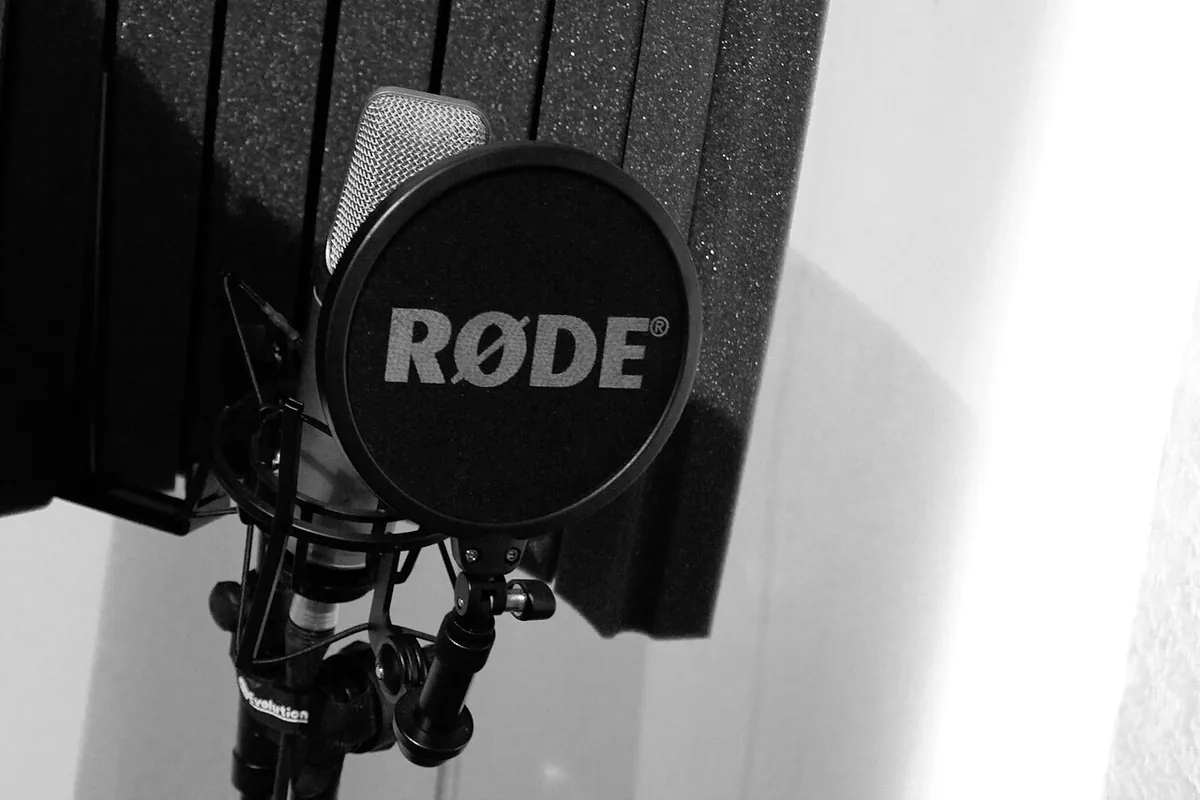
Photo: Tim Sheerman-Chase, CC BY 2.0, via Wikimedia Commons
For a fair before-and-after comparison, record the same sentence each time you change something. A simple online voice recorder lets you save several takes and download them, so you can hear exactly what each tweak did.
USB mics plug straight into your computer and suit calls, streaming and podcasts. XLR mics need an audio interface, which adds its own gain knob and often a "48V" phantom power button for condenser mics. If an XLR mic stays silent during a test, check that the interface shows up as the input device and that phantom power is on when your mic needs it.
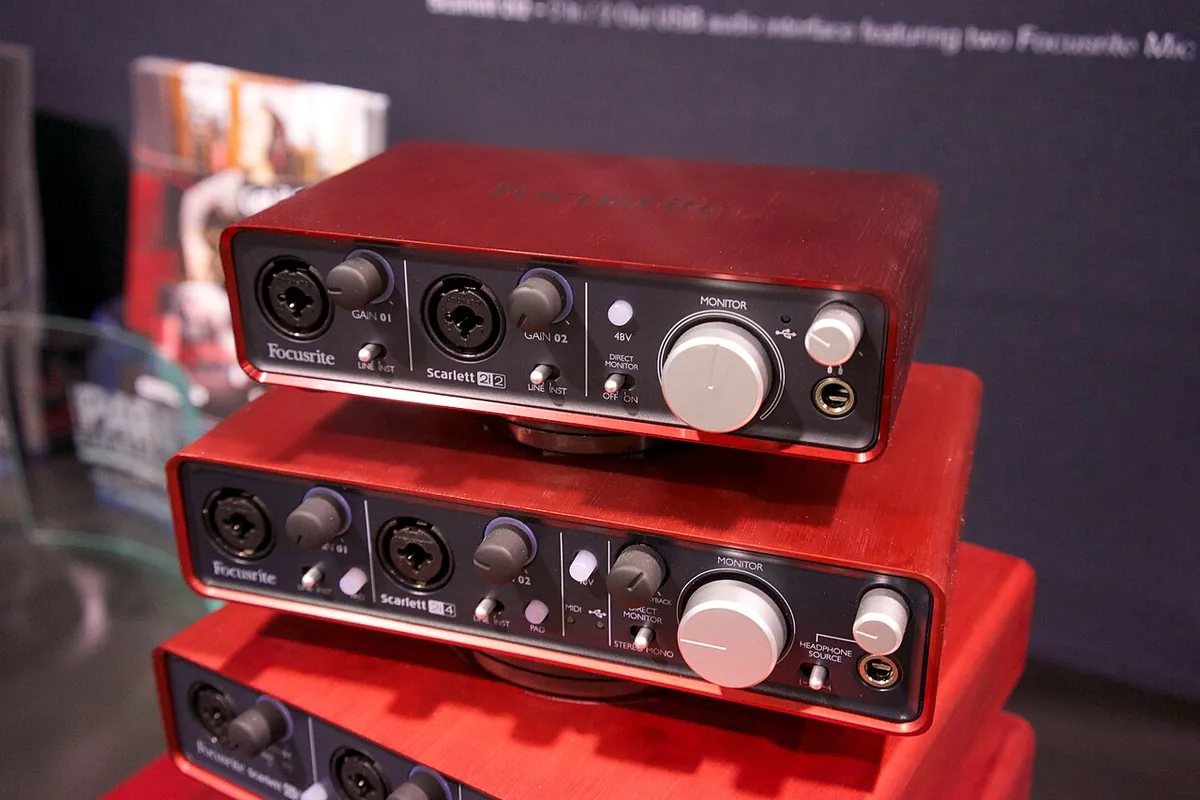
Photo: Matt Vanacoro, CC BY 2.0, via Wikimedia Commons
A mic test only proves people can hear you. You also need to hear them. Plenty of "my mic is broken" moments turn out to be a headset that has the mic working but sends sound to the laptop speakers instead.
Play a short sound and confirm it comes out of the device you expect. A tone generator helps here: play a low-volume tone and pan it left and right to confirm both sides of your headphones work. Start quietly, because test tones can sound sharp at full volume.
Then check the output device in your calling app as well. In Zoom, Teams, Meet and Discord, the speaker setting sits right next to the microphone setting, so it takes seconds to fix.
Job interviews, client calls and online exams deserve a quick routine. Run through this list about ten minutes before you join, and you'll avoid the awkward "can you hear me now?" opening.
Use an online mic test in your browser, or the tools already on your device. Windows 11 has a record-and-play test under Settings > System > Sound. Macs show a live meter under System Settings > Sound > Input, and phones can record a quick voice memo or video.
A well-built online mic test processes audio in your browser and never uploads it. Your browser also asks permission before any site can use the mic, and you can revoke that permission at any time in site settings. Stick to sites that clearly explain how they handle audio.
Record a short clip and play it back, which most online tests, Windows 11, Zoom, Teams and Discord all support. Live monitoring through speakers usually causes echo, so use headphones if you want to hear yourself in real time.
Each app keeps its own microphone setting and its own permission. Select the same mic by name inside the app, then check that the app has mic access in Windows privacy settings, macOS Privacy & Security, or your phone's app permissions.
The usual causes are a covered mic, too much distance, or a heavy noise filter. Remove the case or foam that blocks it, move closer, and try switching noise suppression or Mic Mode off and on. Bluetooth calling mode can also make voices sound dull.
Test it on a second device and through a second app. If it stays silent everywhere with the correct device selected, permissions on, and the mute switch off, the hardware has likely failed. If it works elsewhere, the problem sits in your settings or drivers instead.
Aim for normal speech to fill roughly the middle of the meter, with loud moments only touching the yellow zone. If your tool shows decibels, speaking peaks around -18 to -6 dBFS work well for most calls. Constant red means you should lower the input volume.
Testing a mic comes down to three moves: check that the meter moves, listen to a playback, and confirm the right device inside the app you're about to use. Do that before every important call and you'll catch nearly every problem while you still have time to fix it.
Bookmark this guide for the next time someone says "we can't hear you". Most of the time, the fix sits one menu away.
All photos come from Wikimedia Commons and appear here under their open licences. They have been resized for the web.
A drive sold as 1TB shows as about 931GB in Windows because the two use different units.
msconfig opens Windows System Configuration, a built-in troubleshooting tool for controlling how Windows starts. What each tab does, how to do a clean boot, diagnostic startup and safe boot, how to escape a safe mode loop, and why it matters for security.
UAC (User Account Control) is the Windows feature that runs your apps with standard rights and asks before anything gets admin power. Here’s how the two tokens, the dimmed secure desktop, the four slider levels and the registry settings fit together.
Use NTFS for internal Windows drives, exFAT for USB sticks and SD cards you share with a Mac, and FAT32 only for small or old devices. Here are the real limits (4 GB files, 32 GB format cap), the security differences and the commands.