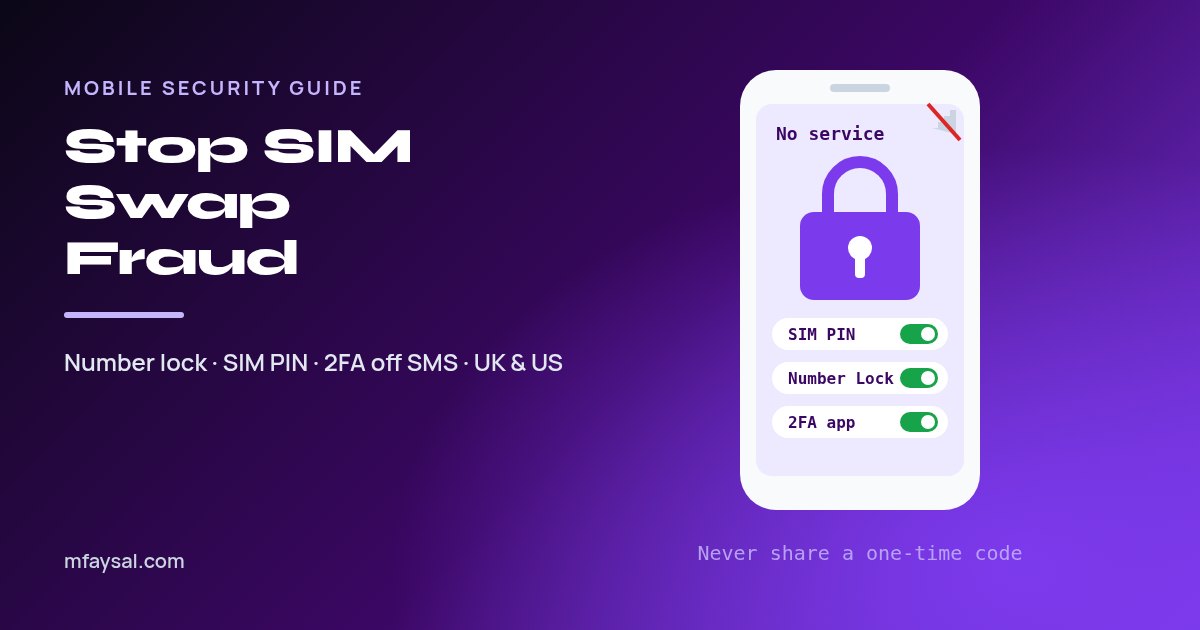
To protect yourself from SIM swap fraud, turn on your mobile network's account protection first: in the US that's SIM Protection and Port Out Protection on T-Mobile, SIM Protection and Number Lock on Verizon, or Wireless Account Lock on AT&T. In the UK, set a strong password on your network account and ask your provider what extra SIM swap checks it offers. Then set a SIM PIN on your phone, move your email, bank and social accounts from text-message codes to an authenticator app or passkey, and never share a one-time code with anyone who contacts you.
Your phone number has quietly become one of the most valuable things you own. Banks text you codes, email providers use it to reset your password, and WhatsApp treats it as your identity. So if a criminal can get your number moved onto their SIM, they can often walk straight into everything else.
That's what SIM swap fraud is, and the scary part is that it doesn't need your phone at all. The criminal just needs to convince your mobile network that they're you.
The good news is that you can make yourself a much harder target in about twenty minutes. In this guide I'll walk you through exactly what to switch on, in what order, for both UK and US networks, plus what to do fast if your phone suddenly loses signal for no reason.
In this guide:
- What SIM swap fraud is (and why your number matters so much)
- Check how exposed your phone number is
- Step 1: Turn on SIM and number lock with a US carrier
- Step 1 for UK readers: secure your mobile network account
- Step 2: Set a SIM PIN on your iPhone or Android
- Step 3: Move important accounts off SMS codes
- Step 4: Lock down WhatsApp and other number-based apps
- Step 5: Make yourself harder to impersonate
- Warning signs you've been SIM swapped
- What to do if your number has been stolen
- Frequently asked questions
What SIM swap fraud is (and why your number matters so much)
A SIM swap happens when someone gets your mobile number moved to a SIM card or eSIM they control. There are two common routes:
- SIM swap: the criminal contacts your network, pretends to be you, says the phone was lost or broken, and asks for a replacement SIM or eSIM.
- Port-out: the criminal moves your number to a different network altogether, again by pretending to be you.
Either way, your phone drops to "No service" and their phone starts receiving your calls and texts. From there they request password resets and one-time codes for your email, bank and social accounts.
The US regulator explains both routes clearly on its cell phone fraud page. It also makes a useful point: eSIMs remove the risk of someone physically stealing your SIM card, but port-out scams are still a concern. So an eSIM helps, but it doesn't make you immune.
Criminals usually prepare by collecting your details first: your name, address, date of birth and sometimes the last digits of a card. These come from data breaches, phishing messages and public social media profiles. That's why the steps below combine locking the number itself with making you harder to impersonate.
Check how exposed your phone number is
Before changing settings, spend five minutes working out what your number actually unlocks. Open your password manager or think through your main accounts and ask one question for each: could someone reset this with a text message?
| Account | Typical risk if your number is stolen | Better option |
|---|
| Main email (Gmail, Outlook, iCloud) | Password reset by SMS, then access to every other account | Passkey or authenticator app, remove SMS as a recovery method where you can |
| Online banking | SMS codes to approve payments or new devices | Approve in the banking app instead of by text, if your bank offers it |
| WhatsApp, Signal, Telegram | Account re-registered on the criminal's phone | Turn on two-step verification or a registration PIN |
| Social media | Account taken over and used to scam your friends | Authenticator app or passkey |
| Crypto exchanges and PayPal | Money moved quickly and hard to recover | Security key, passkey or authenticator app |
Fix the accounts that lean hardest on your number first, right after you lock the number itself.
Step 1: Turn on SIM and number lock with a US carrier
US carriers now offer free switches that block SIM changes and number transfers until you turn them off yourself. This is the single most effective step, so do it first.
| Carrier | Feature names | Where to turn it on |
|---|
| T-Mobile | SIM Protection and Port Out Protection | T-Life app or T-Mobile.com, under your profile's Security settings (Port Out Protection is added per line) |
| Verizon | SIM Protection and Number Lock | My Verizon app, in the Security section |
| AT&T | Wireless Account Lock | AT&T app, under the account (person) icon |
Here's the general flow, which is almost identical on each network:
- Open your carrier's app on your phone and sign in.
- Go to your profile or account settings and look for Security.
- Turn on the SIM protection or account lock switch for every line on the account, including your kids' phones and any tablets or watches.
- If there's a separate port-out or number lock option, turn that on too.
- While you're there, set or change your account PIN or passcode so it isn't your birthday, your house number or the last four digits of your phone number.
T-Mobile's guide to protecting your account from fraud notes that only the primary account holder can remove these protections, which is exactly what you want. The trade-off is that you'll need to switch the lock off before upgrading a phone or moving an eSIM yourself. Verizon, for example, says SIM changes stay blocked for 15 minutes after you disable SIM Protection. That's a small price for blocking a stranger.
Step 1 for UK readers: secure your mobile network account
UK networks work a little differently. Moving your number to another network needs a Porting Authorisation Code (PAC). For a single number you usually request it by texting PAC to 65075 from the phone itself, or through your online account or by phone. Ofcom's guide to switching mobile provider explains the process, including that a PAC is valid for 30 days and a port normally completes within one working day.
Because the text route needs your phone, criminals often target the other routes: a replacement SIM, an eSIM transfer, or taking over your online account to request a PAC there. So in the UK, your network account is the thing to lock down:
- Log in to your My EE, My O2, My Vodafone, Three or other network account.
- Change the password to a long, unique one that you don't use anywhere else.
- Set or update any security answer, memorable word or account PIN. Don't use real answers that are easy to find, like your mother's maiden name.
- Check that the email address and phone number on the account are yours, and remove any you don't recognise.
- Call or message your network and ask: "What extra protection do you offer against SIM swaps and PAC requests on my account?" Some providers can add notes or extra checks.
Vodafone and O2 both say they will never call you and ask for a one-time code or your security details. If someone does, that's the scam in progress. Hang up and call the number on your bill.
Step 2: Set a SIM PIN on your iPhone or Android
A SIM PIN is a different thing from your phone's screen lock. It protects the SIM itself, so if your phone is stolen, the thief can't pop the SIM into another handset and receive your texts. It doesn't stop a criminal persuading your network to issue a new SIM, which is why it's Step 2 and not Step 1, but it closes the physical theft route.
On iPhone:
- Open Settings and tap Mobile Service (called Cellular in the US).
- Tap SIM PIN. With Dual SIM, tap the number you want to protect first.
- Turn on SIM PIN and enter your network's default PIN when asked.
- Tap Change PIN and set your own four to eight digit PIN.
Apple's guide to using a SIM PIN has one warning worth repeating: never guess the default PIN. Too many wrong guesses lock the SIM and you'll need a PUK code from your network, or a new SIM. Check your network's help pages or the SIM packaging for the default.
On Android (Pixel and most others):
- Open Settings and go to Security and privacy, then More security settings.
- Tap SIM lock and turn on Lock SIM.
- Enter the default PIN, then tap Change SIM PIN and choose your own.
Menu names vary a bit by manufacturer. On Samsung phones, search Settings for "SIM lock" if you can't find it. Google notes that some default PINs are publicly known, so changing yours matters.
Step 3: Move important accounts off SMS codes
Locking your number makes a SIM swap much harder. Moving your accounts off text messages means that even if one gets through, it's far less useful.
- Start with your main email account, because it can reset almost everything else.
- Open its security settings and add a passkey or an authenticator app (Google Authenticator, Microsoft Authenticator or similar).
- Once the stronger method works, remove your phone number as a sign-in method if the service lets you, or at least make it a backup rather than the default.
- Save the backup codes somewhere safe and offline.
- Repeat for social media, PayPal, Amazon and any crypto accounts.
Some services, especially banks, still insist on SMS. That's fine. Where the bank has an app, use in-app approval for payments if it's offered, and keep the number locked as in Step 1.
If you haven't set up two-factor authentication before, my step-by-step guide on how to set up two-factor authentication walks through Google, Microsoft, Apple and the main social apps one by one.
Step 4: Lock down WhatsApp and other number-based apps
Messaging apps that use your phone number as your login are a favourite target. If someone gets your number, they can try to register your WhatsApp on their own phone and then message your contacts asking for money.
Turn on WhatsApp's two-step verification:
- Open WhatsApp and go to Settings > Account > Two-step verification.
- Tap Turn on and create a PIN you'll remember but nobody could guess.
- Add an email address so you can reset the PIN if you forget it.
WhatsApp's help page on two-step verification also mentions passkeys, which are worth adding if your phone supports them.
Do the same in Signal (Settings > Account > Registration Lock) and Telegram (Settings > Privacy and Security > Two-Step Verification). And remember the golden rule: WhatsApp will never ask you to send it your six-digit registration code. If a "friend" asks you to forward one, their account has probably already been taken over.
Step 5: Make yourself harder to impersonate
A SIM swap starts with the criminal pretending to be you, so the less they know, the harder that gets. These habits make a real difference:
- Never read out or forward a one-time code to anyone who contacts you, even if they sound exactly like your bank or network. Genuine companies don't ask for them.
- Trim public details. Hide your date of birth, phone number and home town on social media, and avoid quizzes that ask for your first pet or first school.
- Use a unique password for your mobile network account and your main email. A random password or three-random-words passphrase is ideal, and my free password generator can make one in a second.
- Watch for phishing. Many SIM swaps start with a fake text or email that harvests your details. Slow down whenever a message is urgent.
- Treat unexpected network texts seriously. A message saying a SIM change, eSIM transfer or PAC request was made, which you didn't ask for, needs action straight away.
Warning signs you've been SIM swapped
The biggest clue is sudden, unexplained loss of signal. Here's what to look out for and what it might mean.
| What you notice | What it might mean | What to do |
|---|
| "No service" or "SOS only" where you normally have signal | Your number may be active on another SIM | Restart once, then call your network from another phone straight away |
| Text or email about a SIM change, eSIM transfer, PAC or port request you didn't make | Someone is trying, or has succeeded | Contact your network using the number on its website, not one in the message |
| Password reset emails you didn't request | Someone is using your number or email to reset accounts | Change your email password and check its recovery settings |
| Logged out of email or banking apps | Accounts may already be taken over | Use account recovery and call your bank's fraud line |
| Friends say you messaged them asking for money | WhatsApp or social media taken over | Warn contacts from another account and start recovery |
Don't wait a day to see if signal comes back. With SIM swaps, the first hour matters most.
What to do if your number has been stolen
If you think it's happened, act quickly and in this order:
- Call your mobile network from another phone using the number on its official website. Say you suspect SIM swap fraud and ask them to restore your number and block further changes.
- Call your bank's fraud line (in the UK you can also call 159 to reach most banks) and ask them to watch or freeze your accounts.
- Secure your email from a computer: change the password, sign out of all other sessions, and check the recovery phone and email.
- Change passwords for any account that uses your number, starting with financial ones, and switch them to an authenticator app or passkey.
- Warn friends and family that messages from your number or WhatsApp might not be from you.
- Report it. In England, Wales and Northern Ireland, use Report Fraud, the service that replaced Action Fraud in December 2025. In Scotland, call Police Scotland on 101. In the US, file a complaint with the FCC and report identity theft at IdentityTheft.gov.
- Consider extra protection. UK residents can apply for Cifas Protective Registration, a paid service that flags your identity for extra checks when someone applies for credit in your name.
Keep a written note of every call, with dates, times and reference numbers. Your network and bank will ask for them.
Frequently asked questions
Does a SIM PIN stop SIM swap fraud?
Not on its own. A SIM PIN stops someone using your physical SIM in another phone, which helps if your phone is stolen. A SIM swap happens at your mobile network, so you also need the network's SIM protection or account lock and a strong account password.
Is an eSIM safer than a physical SIM?
Partly. The FCC notes that eSIMs can't be physically removed, which cuts out SIM card theft. But criminals can still try to trick your network into moving your number, so you still need your carrier's account protection.
How do I know if my SIM has been swapped?
The most common sign is your phone suddenly showing No service or SOS only where you usually have signal. You may also get unexpected texts or emails about a SIM change, eSIM transfer or port request, or password reset emails you didn't request.
Can someone SIM swap me without my personal details?
It's much harder. Criminals usually gather details like your name, address, date of birth and account information first, often from data breaches, phishing or social media. Keeping these private and using a strong network account password makes impersonation harder.
Do UK mobile networks offer SIM swap protection?
UK networks run their own checks, such as one-time codes and extra verification for SIM changes, but they don't all offer a simple on/off lock like the big US carriers. Secure your online account with a strong password and ask your provider what extra protection it can add.
Should I stop using SMS two-factor authentication?
Keep it if it's the only option, because it's still better than a password alone. Where a service offers an authenticator app, passkey or security key, switch to that for your email, financial and social media accounts.
Will turning on number lock stop me upgrading my phone?
Only until you turn it off. You'll need to disable SIM protection or the account lock in your carrier's app before activating a new phone or moving an eSIM, then turn it back on afterwards.
Last checked: 27 October 2026. Figures, settings and guidance can change, so confirm anything important with the sources linked above.