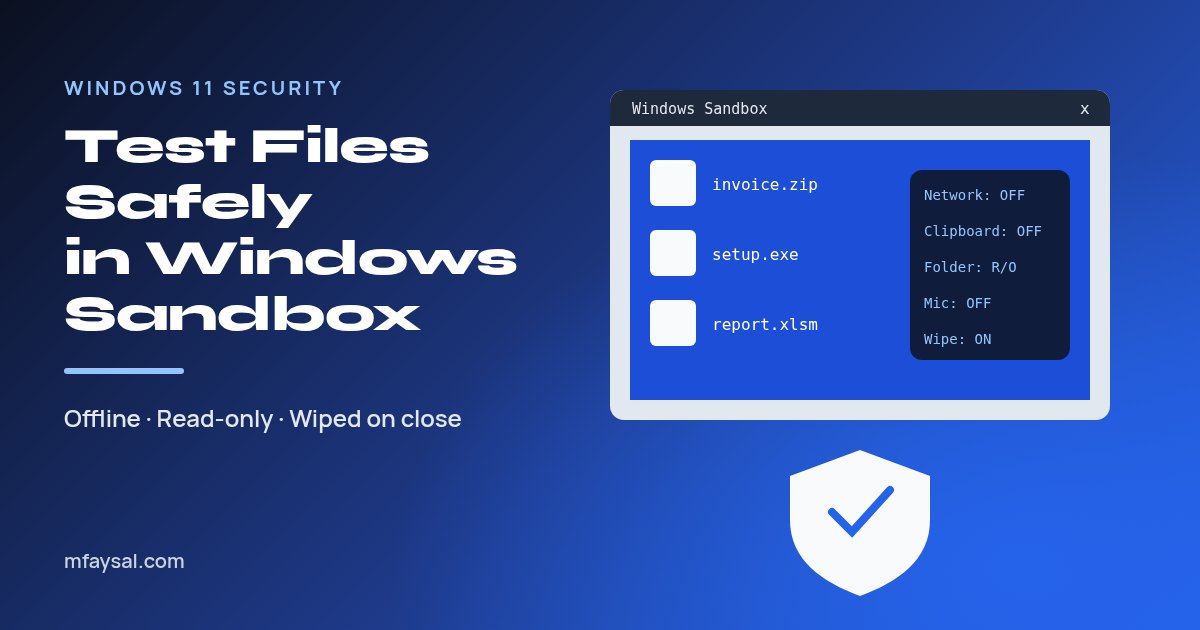
To use Windows Sandbox, search the Start menu for Turn Windows features on or off, tick Windows Sandbox, click OK and restart. Then open Windows Sandbox from the Start menu, copy the file you don't trust into the sandbox window, and open it there. When you close the sandbox, everything inside it is permanently deleted. For anything genuinely suspicious, launch it from a small .wsb file that turns networking off and shares your downloads folder read-only. Windows Sandbox needs Windows 11 (or Windows 10) Pro, Enterprise or Education; it isn't available on Home.
We've all been there. An "invoice" arrives as a zip file, a forum recommends a free tool you've never heard of, or a client sends a macro-heavy spreadsheet. You probably don't want to open it on your main PC, but you still need to see what it is.
Windows Sandbox is Microsoft's answer, and it's already sitting inside your copy of Windows. It gives you a clean, disposable desktop that boots in seconds and vanishes the moment you close it.
In this guide I'll show you how to switch it on, how to test a file safely, how to write a locked-down configuration file, and, just as importantly, what the sandbox can't protect you from. It's aimed at home users, students and small business IT folk in the UK and US.
In this guide:
- What Windows Sandbox actually is
- Check your PC can run it
- Step 1: Turn on Windows Sandbox
- Step 2: Open a suspicious file inside the sandbox
- Step 3: Create a locked-down .wsb configuration file
- What each setting does
- Bonus: control Windows Sandbox from the command line
- What Windows Sandbox can't protect you from
- Windows Sandbox vs other ways to test a file
- Troubleshooting common errors
- A simple routine for opening risky files
- Frequently asked questions
What Windows Sandbox actually is
Windows Sandbox is a lightweight virtual machine. It uses the same hypervisor technology as Hyper-V to run a separate copy of Windows that's walled off from your real system.
Three things make it different from a normal virtual machine:
- It's disposable. Every time you open it you get a brand-new, clean Windows. Close it and all files, apps and settings inside are deleted.
- It's quick. There's no Windows install or ISO to download. It borrows your existing Windows files, so it starts in seconds.
- It's free. If your edition supports it, there's nothing extra to buy.
Microsoft describes it as a way to run untrusted apps and open unknown files, such as email attachments, without risking your main machine. You can read its own overview in the Windows Sandbox documentation on Microsoft Learn.
Check your PC can run it
Before you start, make sure your computer meets Microsoft's requirements:
| Requirement | Minimum | How to check |
|---|
| Windows edition | Pro, Enterprise or Education (Windows 10 version 1903 or later, or Windows 11) | Settings, System, About |
| Processor | 64-bit (AMD64), or Arm64 on Windows 11 22H2 and later; at least 2 cores | Settings, System, About |
| Virtualisation | Enabled in BIOS/UEFI | Task Manager, Performance, CPU, "Virtualization: Enabled" |
| Memory | 4 GB (8 GB recommended) | Task Manager, Performance, Memory |
| Disk space | 1 GB free (SSD recommended) | File Explorer, This PC |
If Task Manager says virtualisation is disabled, restart into your BIOS or UEFI settings (often by pressing F2, F10, F12 or Delete during startup) and look for an option called Intel VT-x, Intel Virtualization Technology, AMD-V or SVM Mode. The exact wording depends on your motherboard maker.
On Windows Home, the Sandbox option simply won't appear. Upgrading to Pro unlocks it, or you can use a free virtual machine app instead, which I cover further down.
Step 1: Turn on Windows Sandbox
You can switch it on through the Windows Features dialog or with one PowerShell command.
Option A: Windows Features
- Click Start and type Turn Windows features on or off, then open it.
- Scroll down and tick Windows Sandbox.
- Click OK and wait while Windows adds the files.
- Restart your PC when it asks.
Option B: PowerShell
Right-click Start, choose Terminal (Admin) or Windows PowerShell (Admin), and run:
Enable-WindowsOptionalFeature -FeatureName "Containers-DisposableClientVM" -All -Online
Type Y to restart when prompted. If the checkbox is greyed out or missing, go back and double-check the edition and virtualisation rows in the table above. Microsoft's install guide for Windows Sandbox lists the same steps if you want the official version.
Step 2: Open a suspicious file inside the sandbox
This is the quick, everyday method. It's fine for checking what a document or installer looks like.
- Open the Start menu, type Windows Sandbox and open it. A new window appears with a fresh Windows desktop.
- On your real desktop, find the file, right-click it and choose Copy.
- Click inside the sandbox window, right-click its desktop and choose Paste. The file is copied into the sandbox.
- Open the file inside the sandbox and watch what it does.
- When you're done, close the sandbox window and confirm. Everything inside is gone.
A few things to watch for while it runs:
- Does a "PDF" or "invoice" suddenly ask to enable macros or run a program? That's a classic red flag.
- Does an installer try to add extra toolbars, browsers or "optimisers"?
- Does anything pop up asking for your email or Microsoft password? Never type real passwords in a sandbox test.
One catch: by default the sandbox has internet access and shares your clipboard. That's convenient, but it isn't the safest setting for something you really suspect is malware. The next step fixes that.
Step 3: Create a locked-down .wsb configuration file
A .wsb file is a small text file that tells Windows Sandbox how to start. Double-click it and the sandbox launches with your settings. Here's a safer setup for testing downloads:
- Create a folder for files you want to test, for example
C:\SandboxTest, and move the suspicious file into it. - Open Notepad and paste this:
<Configuration>
  <Networking>Disable</Networking>
  <VGpu>Disable</VGpu>
  <ClipboardRedirection>Disable</ClipboardRedirection>
  <AudioInput>Disable</AudioInput>
  <VideoInput>Disable</VideoInput>
  <PrinterRedirection>Disable</PrinterRedirection>
  <ProtectedClient>Enable</ProtectedClient>
  <MappedFolders>
    <MappedFolder>
      <HostFolder>C:\SandboxTest</HostFolder>
      <SandboxFolder>C:\Test</SandboxFolder>
      <ReadOnly>true</ReadOnly>
    </MappedFolder>
  </MappedFolders>
  <LogonCommand>
    <Command>explorer.exe C:\Test</Command>
  </LogonCommand>
</Configuration>
- Choose File, Save as, set Save as type to All files, and name it
SafeTest.wsb. - Double-click
SafeTest.wsb. The sandbox opens with File Explorer already showing C:\Test, and your file is inside.
Because the folder is read-only, nothing running in the sandbox can change or encrypt the files on your real PC. Because networking is off, malware can't download extra payloads, phone home or poke around your home or office network. This is the same approach Microsoft shows in its sample sandbox configuration files.
What each setting does
| Setting | Default | Safer choice for testing | Why |
|---|
Networking | Enabled | Disable | Stops downloads, callbacks and access to your local network. |
VGpu | Enabled (non-Arm) | Disable | Reduces the attack surface shared with your real graphics card. |
ClipboardRedirection | Enabled | Disable | Stops the sandbox reading or changing what you've copied. |
AudioInput | Enabled | Disable | Keeps your microphone away from untrusted code. |
VideoInput | Disabled | Disable | Keeps your webcam away from untrusted code. |
PrinterRedirection | Disabled | Disable | No access to your printers. |
ProtectedClient | Disabled | Enable | Adds extra security to the remote desktop connection to the sandbox. |
MappedFolders ReadOnly | None mapped | true | Lets the sandbox read the file but never write back to your PC. |
MemoryInMB | Up to 4 GB | Leave as is | Raise it only if a big app needs more memory. |
Turning off the clipboard means you can't copy text out of the sandbox, which is the point. If you need to take notes, write them on your real PC as you watch. The full list of options is on Microsoft's use and configure Windows Sandbox page.
Bonus: control Windows Sandbox from the command line
Starting with Windows 11 version 24H2, Windows Sandbox has a command-line tool called wsb. It's handy for developers and IT staff who want to script repeat tests:
| Command | What it does |
|---|
wsb start | Starts a new sandbox and prints its ID |
wsb list | Shows running sandboxes for your account |
wsb share --id <ID> -f C:\host -s C:\box | Shares a host folder (read-only unless you add --allow-write) |
wsb connect --id <ID> | Opens a window into that sandbox |
wsb stop --id <ID> | Shuts it down and deletes everything inside |
Microsoft notes that wsb exec can run a command inside the sandbox but can't yet return its output, so it's best for kicking off installers rather than collecting results. The details are in the Windows Sandbox command line reference.
What Windows Sandbox can't protect you from
A sandbox is a great safety net, but it isn't magic. Keep these limits in mind:
- Networking is on by default. If you use the plain Start menu shortcut, malware inside can reach the internet and other devices on your network. Use the
.wsb file for anything risky. - Some malware hides in virtual machines. Clever samples check whether they're being watched and simply do nothing. A file that "looks fine" in the sandbox isn't proven safe.
- Writable shared folders are a door. If you map a folder without
ReadOnly, ransomware in the sandbox could encrypt it. - Phishing still works. If a fake login page tricks you into typing your real password inside the sandbox, the attacker still gets your password.
- Bugs happen. Hypervisor escapes are rare, but keep Windows updated so security fixes for the sandbox itself are installed.
Before you even open a file, it's worth checking it against a malware scanner. Uploading it to VirusTotal runs it past dozens of antivirus engines at once, though remember that anything you upload can be shared with security researchers, so never upload private documents.
Windows Sandbox vs other ways to test a file
| Option | Cost | Setup time | Keeps changes? | Best for |
|---|
| Windows Sandbox | Free on Pro/Enterprise/Education | Minutes | No, wiped on close | Quick one-off tests |
| Full virtual machine (Hyper-V, VirtualBox) | Free | An hour or more | Yes, with snapshots | Repeat testing, Windows Home users |
| Online scanner (VirusTotal) | Free | Seconds | Not applicable | A first opinion before opening |
| Spare old PC | Hardware you already own | Varies | Yes | Testing hardware drivers |
For most people, the sweet spot is a scanner first, then Windows Sandbox with networking off if you still need to look inside. If a download comes with a published hash, check it too; my guide on how to verify a file checksum shows you how in a couple of commands.
Troubleshooting common errors
| Problem | Likely cause | Fix |
|---|
| No Windows Sandbox option in Windows Features | Windows Home, or virtualisation unsupported | Check your edition; use a free VM app on Home. |
| "No hypervisor was found" or error 0x80070057 | Virtualisation off in BIOS | Enable Intel VT-x or AMD-V/SVM in BIOS/UEFI. |
| Sandbox opens to a black screen | Graphics driver issue | Update graphics drivers, or set VGpu to Disable. |
| Mapped folder is empty | Typo in HostFolder path | Check the path exists exactly as typed. |
| Calculator, Notepad or Photos missing | Windows 11 24H2 change | Microsoft says inbox Store apps aren't available in the sandbox on 24H2 yet. |
| .wsb file opens in Notepad | Saved as .wsb.txt | Turn on file extensions in File Explorer and rename it. |
If a test leaves you worried your real PC was touched, run a full Microsoft Defender scan and check what launches at boot. My walkthrough on how to check startup programs covers that second step.
A simple routine for opening risky files
- Don't open it on your main desktop. Save it to
C:\SandboxTest. - Check it with a scanner, and check the hash if the publisher gives one.
- Double-click
SafeTest.wsb to start an offline, read-only sandbox. - Open the file and watch for macro prompts, password requests or odd pop-ups.
- Close the sandbox. Delete the original file if anything looked wrong.
- Report phishing: in the UK forward emails to
report@phishing.gov.uk; in the US report scams to the FTC.
That routine takes about two minutes once the .wsb file exists, and it removes most of the guesswork. For more quick, no-sign-up helpers, have a look at my free online tools.
Frequently asked questions
Is Windows Sandbox available on Windows 11 Home?
No. Windows Sandbox only runs on Pro, Enterprise and Education editions. On Home you can use a free virtual machine app such as VirtualBox instead, or upgrade to Pro.
Is Windows Sandbox safe for testing malware?
It is much safer than opening a file on your main PC, especially with networking disabled and a read-only shared folder. It isn't a professional malware lab, though, and some malware detects virtual machines and stays quiet.
Does Windows Sandbox have internet access?
Yes, by default. You can turn it off by adding Networking set to Disable in a .wsb configuration file and starting the sandbox from that file.
Does Windows Sandbox save files after I close it?
No. Closing the sandbox deletes everything inside it. On Windows 11 22H2 and later, data does survive a restart started from inside the sandbox, but not closing the window.
How do I get files into Windows Sandbox?
Copy and paste them into the sandbox window, or map a folder with a .wsb file. Mapping a folder read-only is safer because nothing inside can change your real files.
Why is the Windows Sandbox option greyed out?
Usually because virtualisation is turned off in the BIOS or UEFI, or your edition of Windows doesn't support it. Check Task Manager's CPU page for Virtualization: Enabled.
Can I install apps inside Windows Sandbox?
Yes, you can install almost any desktop app inside it to try it out. Everything you install disappears when you close the sandbox.
Last checked: 29 October 2026. Figures, settings and guidance can change, so confirm anything important with the sources linked above.