# Cybersecurity for Beginners: A Complete Guide to Staying Safe Online
The internet has become an essential part of our everyday lives. We use it to communicate with friends, study, work, shop, manage finances, and access countless digital services. However, as our online activities increase, so do the risks associated with using the internet.
Cybercriminals constantly look for opportunities to steal personal information, access online accounts, spread malicious software, and trick unsuspecting users.
This is where **cybersecurity** becomes important.
Whether you are a student, an everyday internet user, a business owner, or someone who is just beginning to explore technology, understanding basic cybersecurity can help you protect your digital life.
In this complete guide, you will learn what cybersecurity is, how common online threats work, and what practical steps you can take to stay safer online.
## Table of Contents
1. What Is Cybersecurity?
2. Why Is Cybersecurity Important?
3. Common Cybersecurity Threats
4. How to Create Strong Passwords
5. Understanding Two-Factor Authentication
6. How to Recognize Phishing Attacks
7. Protecting Your Devices from Malware
8. How to Stay Safe on Public Wi-Fi
9. Protecting Your Online Privacy
10. The Importance of Software Updates
11. Cybersecurity Best Practices for Everyday Users
12. What to Do If Your Account Is Compromised
13. Cybersecurity Tools Every Beginner Should Know
14. Frequently Asked Questions
15. Final Thoughts
## 1. What Is Cybersecurity?
Cybersecurity is the practice of protecting computers, mobile devices, networks, applications, and digital information from unauthorized access, damage, theft, and other digital threats.
In simple terms, cybersecurity helps keep your digital information safe.
For example, when you use a password to access your email account, enable two-factor authentication, or install security updates on your computer, you are practicing cybersecurity.
Cybersecurity covers several important areas:
- **Network Security:** Protecting computer networks from unauthorized access and suspicious activity.
- **Information Security:** Keeping sensitive information confidential, accurate, and available.
- **Application Security:** Protecting websites, software, and applications from security weaknesses.
- **Cloud Security:** Protecting data and services stored in cloud environments.
- **Endpoint Security:** Securing devices such as laptops, desktops, and smartphones.
Cybersecurity is not only for IT professionals. Everyone who uses the internet can benefit from understanding its basic principles.
## 2. Why Is Cybersecurity Important?
Imagine losing access to your email account, having your personal photos exposed, or discovering that someone has accessed your social media profile without permission.
These situations demonstrate why online security matters.
Cybersecurity helps protect:
**Personal Information**
Your name, email address, phone number, photographs, and other personal details should not fall into the wrong hands.
**Online Accounts**
Your email, social media, educational platforms, and other accounts contain information that deserves protection.
**Financial Information**
Online shopping and financial services require careful handling of sensitive information.
**Devices and Files**
Your computer and smartphone may contain important documents, photographs, and personal files.
**Digital Reputation**
Unauthorized access to your accounts can result in harmful messages, impersonation, or misleading content being shared in your name.
Good cybersecurity habits reduce these risks and help you use technology with greater confidence.
## 3. Common Cybersecurity Threats
Understanding common online threats is one of the most important steps toward becoming more secure.
Here are some threats every beginner should recognize.
### Phishing
Phishing is a type of online scam in which someone pretends to be a trusted organization or person to trick you into sharing sensitive information.
For example, you might receive an email claiming that your account needs immediate verification.
The message may contain a suspicious link leading to a fake website designed to collect your login information.
Common warning signs include:
- Unexpected messages requesting personal information.
- Urgent language or threats about account suspension.
- Suspicious links or unfamiliar website addresses.
- Unexpected attachments.
- Offers that seem too good to be true.
**Safety tip:** Never enter your password or verification code through an unexpected link. Visit the official website directly instead.
### Malware
Malware is short for malicious software. It refers to software designed to harm devices, interfere with normal operations, or access information without permission.
Common categories include:
- **Viruses:** Malicious programs that can attach themselves to files or applications.
- **Ransomware:** Malware that can lock or encrypt files and demand payment.
- **Spyware:** Software designed to collect information without proper permission.
- **Trojans:** Programs that disguise themselves as legitimate software.
To reduce malware risks, download applications from trusted sources, keep software updated, and avoid opening suspicious attachments.
### Social Engineering
Social engineering involves manipulating people into revealing information or taking actions that compromise their security.
An attacker might pretend to be a technical support employee, a company representative, or someone you know.
Always verify unexpected requests through a separate, trusted communication channel.
### Password Attacks
Weak or reused passwords can make online accounts easier to compromise.
If the password for one website is exposed, reusing it on other websites can put multiple accounts at risk.
Use a different, strong password for every important account.
### Identity Theft
Identity theft happens when someone uses another person's personal information without permission.
Stolen information may be misused to impersonate someone, access accounts, or attempt fraudulent activities.
Be careful about where and with whom you share personal information.
## 4. How to Create Strong Passwords
Passwords are one of the most important parts of online account security.
Unfortunately, many people still use simple passwords or reuse the same password across multiple websites.
A strong password should be:
- Long and difficult to guess.
- Unique for each account.
- Random rather than based on predictable personal information.
- Stored securely.
The Cybersecurity and Infrastructure Security Agency (CISA) recommends using passwords that are at least 16 characters long, with a different password for each account.
### Password Security Tips
1. Avoid using your name or birthday.
2. Never reuse important passwords.
3. Use a reputable password manager.
4. Enable multi-factor authentication.
5. Change a password promptly if an account is affected by a breach.
Password managers can help generate and store unique passwords without requiring you to memorize every one.
## 5. Understanding Two-Factor Authentication (2FA)
Two-factor authentication (2FA) adds another verification step when you sign in to an account.
Instead of relying only on a password, the service asks you to provide an additional form of verification.
For example:
- A code generated by an authenticator application.
- A notification that you approve on a trusted device.
- A fingerprint or facial recognition check.
- A security key.
Multi-factor authentication (MFA) is the broader term for using two or more authentication factors.
### Why Is 2FA Important?
Imagine that someone discovers your password. Without another verification step, they may be able to access your account.
With 2FA enabled, they will generally need an additional authentication factor as well.
Whenever possible, enable MFA on your email, social media, cloud storage, and other important accounts.
Never share verification codes or approve login requests that you did not initiate.
## 6. How to Recognize Phishing Attacks
Phishing messages can arrive through email, text messages, social media, messaging applications, and phone calls.
Some messages are poorly written, while others look very convincing.
Before interacting with an unexpected message, consider these questions:
- Do I recognize the sender?
- Was I expecting this message?
- Is the message requesting sensitive information?
- Does the link lead to the organization's official website?
- Is the message creating unnecessary urgency?
### Example of a Suspicious Message
Subject: Urgent! Your Account Will Be Suspended
Message: Your account has an issue. Verify your information immediately using the link below.
This type of unexpected message should be treated with caution.
Do not click its link. Instead, independently visit the official website or contact the organization using verified contact details.
Remember: A legitimate-looking logo does not prove that a message is genuine.
## 7. Protecting Your Devices from Malware
Your computer and smartphone contain valuable information. Keeping them secure is an essential part of cybersecurity.
Follow these practical recommendations:
**Download Applications Carefully**
Install applications from official stores and trusted developer websites.
**Use Built-in Security Features**
Keep your operating system's built-in security protections enabled.
**Avoid Suspicious Attachments**
Do not open unexpected files from unknown senders.
**Review Application Permissions**
Check whether applications request access to information or device features they do not reasonably need.
**Back Up Important Files**
Maintain regular backups of important documents and photographs using a trusted backup service or external storage.
A good backup strategy can help you recover important information if a device is lost, damaged, or affected by malware.
## 8. How to Stay Safe on Public Wi-Fi
Public Wi-Fi is available in many places, including cafes, airports, hotels, and educational institutions.
Although convenient, public networks may not provide the same level of security as a properly configured private network.
Here are some useful precautions:
1. Verify the network name with the venue before connecting.
2. Avoid sensitive activities on networks you do not trust.
3. Keep your device firewall and security protections enabled.
4. Use HTTPS websites for online services.
5. Disable automatic connection to unfamiliar Wi-Fi networks.
6. Avoid sharing files with unknown devices on public networks.
For sensitive activities, a trusted mobile connection may be a better option.
A VPN can protect network traffic between your device and the VPN provider, but it does not make every online activity automatically safe.
## 9. Protecting Your Online Privacy
Online privacy means having appropriate control over how your personal information is collected, used, and shared.
Many websites and applications collect information to provide their services, personalize experiences, or analyze usage.
You can improve your privacy by following these practices:
- Review privacy settings on social media.
- Avoid publicly sharing sensitive personal details.
- Limit unnecessary application permissions.
- Be careful when sharing photographs and documents.
- Review which third-party applications have access to your accounts.
- Close accounts that you no longer use when appropriate.
Think carefully before posting personal information online. Once information becomes public, controlling where it spreads can be difficult.
## 10. The Importance of Software Updates
Software updates are not only about adding new features or improving performance.
They frequently include security fixes that address weaknesses discovered in operating systems, browsers, and applications.
Outdated software may contain known security vulnerabilities.
For better protection:
- Enable automatic updates where available.
- Update your operating system regularly.
- Keep your web browser updated.
- Install updates for mobile applications.
- Replace software that is no longer supported.
Do not ignore legitimate security update notifications.
However, always download updates through official system settings or trusted software sources rather than unexpected pop-up messages.
## 11. Cybersecurity Best Practices for Everyday Users
You do not need to be a cybersecurity expert to improve your online safety.
Start with these everyday habits:
| Practice | Why It Matters |
|---|---|
| Use unique passwords | Reduces risks from reused credentials |
| Enable MFA | Adds another layer of account protection |
| Update software | Helps fix known security weaknesses |
| Avoid suspicious links | Reduces phishing risks |
| Back up important files | Helps recover lost information |
| Secure your Wi-Fi | Protects your home network |
| Review privacy settings | Limits unnecessary information sharing |
| Lock your devices | Helps prevent unauthorized physical access |
| Check account activity | Helps identify unfamiliar access |
| Download trusted software | Reduces exposure to malicious applications |
Consistency is more important than trying to learn everything at once.
## 12. What to Do If Your Account Is Compromised
Even careful internet users can experience security problems.
If you suspect that an account has been accessed without your permission, take these steps:
**Step 1: Secure the Account**
If you can still access it, change the password immediately using the official website or application.
**Step 2: Enable MFA**
Turn on multi-factor authentication if it is not already enabled.
**Step 3: Review Active Sessions**
Look for unfamiliar devices or login sessions and sign them out.
**Step 4: Check Recovery Information**
Review the recovery email address, phone number, and other account settings.
**Step 5: Secure Related Accounts**
If you reused the affected password elsewhere, change those passwords too.
**Step 6: Contact Official Support**
Use the organization's official support channels if you cannot recover the account yourself.
**Step 7: Monitor Your Accounts**
Watch for unfamiliar activity and suspicious messages.
If financial information may have been exposed, contact your bank or financial service provider through its official channel.
Acting quickly can help reduce further damage.
## 13. Cybersecurity Tools Every Beginner Should Know
Several types of security tools can help ordinary internet users improve their digital safety.
### Password Managers
Password managers help generate, store, and organize strong, unique passwords.
### Authenticator Applications
Authenticator applications generate verification codes or provide approval notifications for accounts that support them.
### Antivirus and Built-in Security
Reputable security software and built-in operating system protections can help detect and prevent certain malware threats.
### VPN Services
VPNs encrypt traffic between your device and the VPN provider, helping protect traffic on some networks. Choose a trustworthy provider and understand its privacy policy.
### Backup Solutions
Cloud backup services and external storage can help protect important files against accidental loss and certain security incidents.
No single tool provides complete protection. Good security habits and reliable tools should work together.
## 14. Frequently Asked Questions (FAQ)
### What is cybersecurity in simple words?
Cybersecurity is the practice of protecting computers, networks, online accounts, and personal information from digital threats and unauthorized access.
### Why is cybersecurity important for beginners?
Beginners use email, social media, websites, and mobile applications just like experienced internet users. Understanding cybersecurity helps them recognize scams, protect accounts, and avoid common online risks.
### What are the five basic cybersecurity practices?
Five important practices are using strong unique passwords, enabling MFA, updating software, recognizing phishing attempts, and backing up important information.
### Can I learn cybersecurity without programming?
Yes. You can begin learning cybersecurity without programming experience. Start with networking fundamentals, online safety, operating systems, and basic security concepts.
### What is the difference between cybersecurity and online security?
Online security generally focuses on protecting people, accounts, devices, and information while using the internet. Cybersecurity is a broader field that also includes networks, systems, applications, and organizational infrastructure.
### Is public Wi-Fi safe?
Public Wi-Fi can carry additional security and privacy risks. Verify the network, avoid sensitive activities on networks you do not trust, and keep your device security protections enabled.
### How can I protect my social media accounts?
Use unique passwords, enable MFA, review active sessions, check privacy settings, and avoid suspicious links or messages.
### What should I do if I receive a suspicious email?
Do not click links, download attachments, or provide personal information. Verify the message independently, report it through the appropriate service, and delete it.
### Is antivirus software enough to protect my computer?
No. Antivirus software is only one part of a security strategy. Regular updates, safe browsing habits, backups, and strong account protection are also important.
### Can cybersecurity be learned by beginners?
Absolutely. Anyone interested in technology can begin with fundamental concepts and gradually explore areas such as network security, information security, and digital forensics.
## 15. Final Thoughts
Cybersecurity is no longer something that only technology professionals need to understand. It is an important part of everyday digital life.
From protecting your email account to recognizing suspicious messages, small security habits can make a meaningful difference.
You do not need expensive software or advanced technical knowledge to get started. Begin with strong passwords, multi-factor authentication, regular updates, safe browsing, and reliable backups.
The most important thing is to stay informed, think before you click, and make online security a regular habit.
**Stay informed. Stay protected. Stay secure.**
For more technology guides, cybersecurity tutorials, and practical digital safety tips, explore **[mfaysal.com](https://mfaysal.com/)**.
---
**About the Author**
MFaysal Editorial Team publishes educational content about cybersecurity, web development, technology, and digital safety to help readers understand and navigate the digital world.
**Disclaimer:** This article is intended for educational purposes. No security measure can eliminate every online risk. Always follow the official security guidance provided by your service providers.
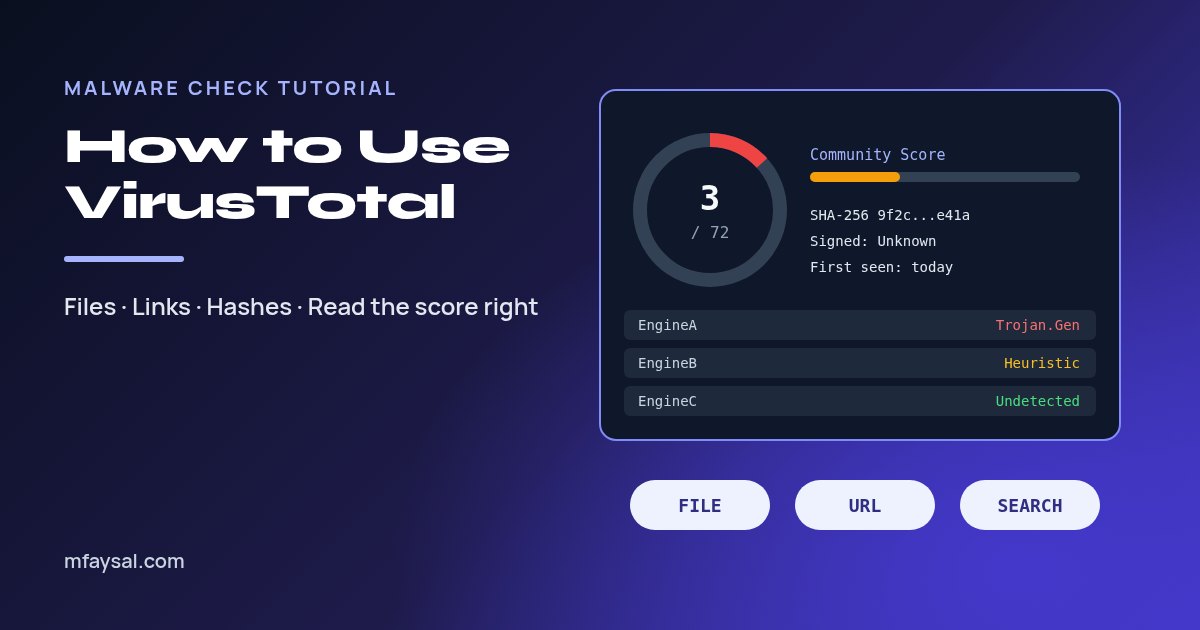
To use VirusTotal, go to virustotal.com and choose File, URL or Search. Search a file's SHA-256 hash first, upload only files that aren't private, then read who flagged it, not just the score. A clean result isn't proof of safety, and anything you upload can be seen by security researchers.
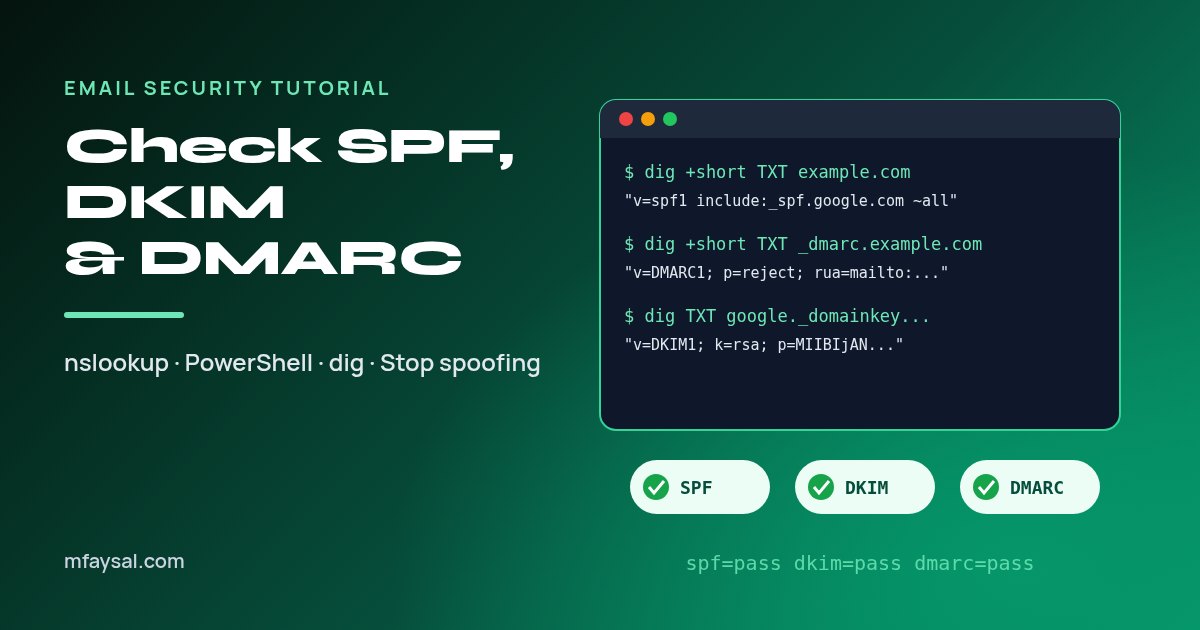
To check SPF, DKIM and DMARC, look up three DNS TXT records: SPF at the domain itself, DMARC at _dmarc.yourdomain, and DKIM at selector._domainkey.yourdomain. Use nslookup or PowerShell on Windows and dig on Mac or Linux, then read the results line by line.
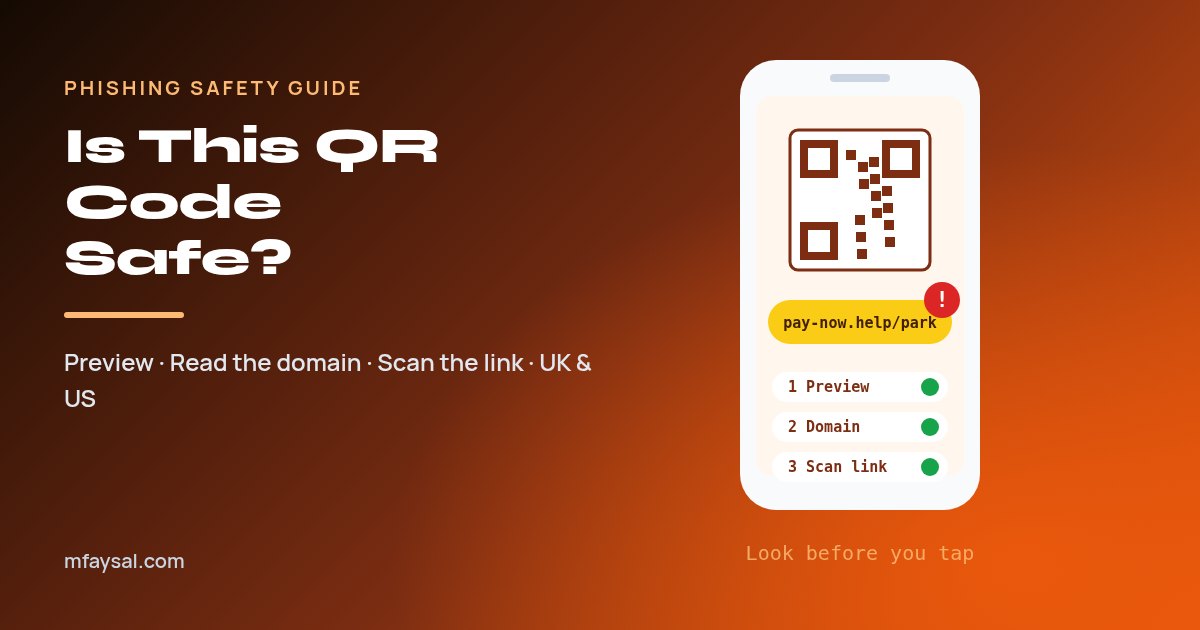
To check if a QR code is safe, preview the web address before opening it, make sure the domain belongs to the real organisation, look for stickers over the original code, and test doubtful links with a free scanner. If a page asks for a password or card details, use the official site or app.
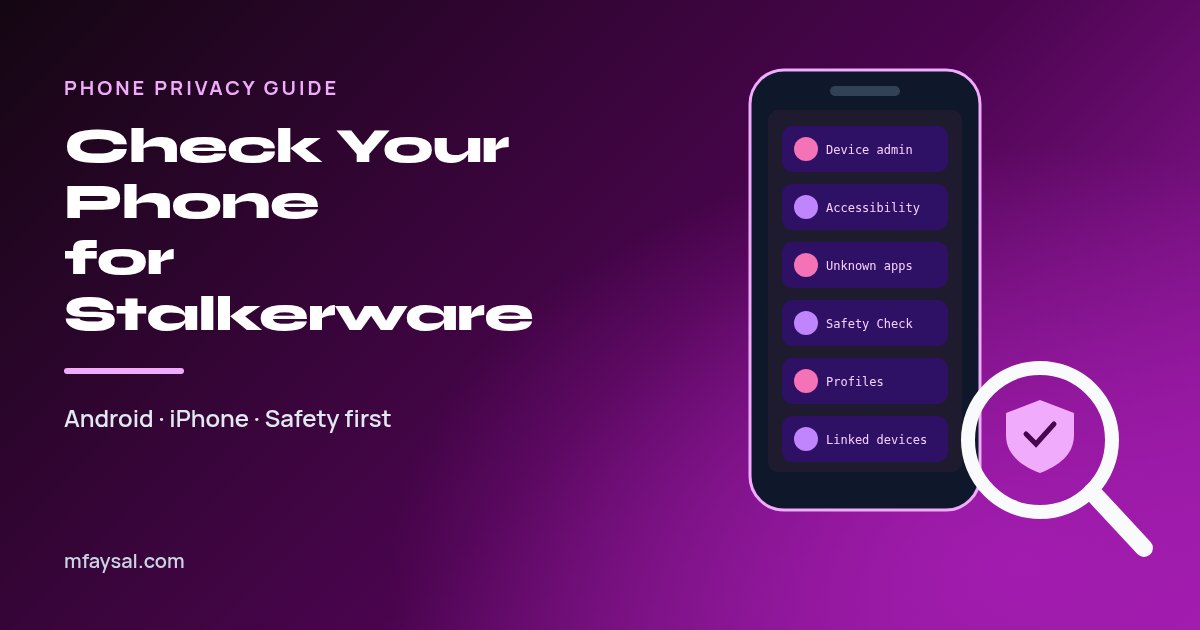
To check for stalkerware, review your full app list, device admin and accessibility apps, and unknown-app installs on Android, or Safety Check, configuration profiles and signed-in devices on iPhone. If an abuser might notice, get help from a safe device before changing anything.
October 30, 2026 · 14 min read · 39 views
MMahir Faysal
Cybersecurity learner·SOC analyst in training·Free-tool builder·Blue-team enthusiast·Software builder·Cybersecurity learner·SOC analyst in training·Free-tool builder·Blue-team enthusiast·Software builder·